Friday, August 16, 2019

View Other Users concurrent Request Output

View Other Users concurrent Request Output


R11
System Administrator à Profile à System
Search for profile à 'Concurrent: Report Access Level'

Level

Value

Result

Site

User

The user can only view the requests submitted by him

Responsibility

Responsibility

That user can also review the log and report output files from all requests submitted from the current responsibility

User

Responsibility

Any user of that responsibility can also view the log and report output files from all requests submitted by any other user of that responsibility


R12
Unfortunately in R12 profile 'Concurrent: Report Access Level' does not work, it is a bit more complex process to achieve this
In R12 this was replaced by Role Based Access Control. The UMX Role Based Access Control (RBAC) is to control who can view request output files.
Note :-  You should have SYSADMIN user access.
Functional Developer -> Core Services
 >> Search for 'Concurrent Requests'

Click on 'Concurrent Requests' and then on tab 'Object Instance Set'
Ø  Click Create Instance Set

 Ø  Give Name/Code/Description
Ø  For Predicate
è Enter below code if you want to see request output for all concurrent programs . 
&TABLE_ALIAS.request_id in(
select  cr.request_id
  from apps.fnd_concurrent_requests cr, apps.fnd_concurrent_programs cp
where cr.concurrent_program_id = cp.concurrent_program_id
     and cr.program_application_id = cp.application_id)
è Modify the above query based on your requirement.
n  Add and cp.concurrent_program_name  if you want to give access only for particular program name, etc.
Ø  'Apply' it and it will give the Confirmation with Code you have entered.
 >>> Now login as a SYSADMIN User.
Ø  Goto User Management > Role & Role Inheritance
è Click on 'Create Role'
      Ø  Category – Miscellaneous / Application – Application Object Library
      Ø  Role Code (Prefix UMX| will be added whatever you provide example : UMX|AKTEST)
Ø  Display Name/ Description
Ø  'Apply'
Ø  Click on 'Create Grant'
Ø  Provide Name / Description
Ø  Data Security ->  Object -> 'Concurrent Requests'
Ø  Click on 'Next'
Ø  Data Context Type -> 'Instance Set'
Ø  Instance Set  -> Instance you Created above, AKTEST
Ø  Click 'Next'
Ø  Set -> Set -> 'Request Operations'
  
Ø  Click on 'Next' -> Preview and then 'Finish'

Ø  It should give you the message for successful creation of Grant.
Known Issue
 

Sometimes it will give below Error. Just try 3-4 times, it should be fine.

Sorry didn't dig much into it to find the exact reason behind it.

Error Page

You have encountered an unexpected error. Please contact the System Administrator for assistance.
Goto 'User tab 
Ø  Search for the user you want to assign the grant.
Ø  Click  'Update'
Ø  Click 'Assign Role'
Ø  Search for Role you have created above 'View All Concurrent Requests outputs' (Code - UMX|AKTEST)
Ø  Give Justification
Ø  You can put active date from past to view previous requests outputs.


   Ø  DONE... :)

* Now assigned user can see the output of other user's request from the responsibility from  which that request had been launched.

>> You can also use the below script to assign the grant to a user.

begin
     wf_local_synch.PropagateUserRole(p_user_name => 'USERNAME'
                                                               ,p_role_name => 'UMX|AKTEST ');
     commit;
End;

Function Not Available To This Responsibility. Change Responsibilities Or Contact Your System Administrator

Error:
Function not available to this responsibility. Change responsibilities or contact your System Administrator 

Generally we are getting this type of error when we are using Help --> Diagnostics


Cause:

If you are not assign the 'Utilities:Diagnostics' Profile Option at any level ,we are getting this type of Error.

Solution:

Assign 'Utilities:Diagnostics' Profile Option at Responsibility or User Level

Navigation:

System Administrator --> Profile --> System


Here i am assigning this profile option at User Level
Enter User Name and Profile Option and then Click on Find button.

Assign Utilities:Diagnostics Profile option at user level Yes and save your work.


Now check your error. Now we should not get this type error in your form.


Oracle Apps 12.1.3 upgrade post upgrade steps for Oracle E-Business Suite Integrated SOA Gateway:

Oracle Apps 12.1.3 upgrade post upgrade steps for Oracle E-Business Suite Integrated SOA Gateway:


Oracle Apps 12.1.3 upgrade post upgrade steps for Oracle E-Business Suite Integrated SOA Gateway:

If you have upgraded the applications to 12.1.3 and you have SOA gateway integrated with EBSO, The below steps are mandatory to perform.

0)Techstack Upgrade

The Minimum patch set for Applications Server required for SOA is 10.1.3.5.0
A)upgrade your system to Oracle10g Application Server Patch Set 5 (10.1.3.5.0).

i)Apply the latest opatch
- cd $IAS_ORACLE_HOME
- mv OPatch OPatch_old

- unzip -d $IAS_ORACLE_HOME /tmp/p6880880_101000_LINUX.zip (Download the patch from support.oracle.com)
- chmod -R 755 OPatch
- $IAS_ORACLE_HOME/OPatch/opatch version
- OPatch Version: 1.0.0.0.63

ii)Install 10.1.3.5 Patchset 8626084
- Source the env file under $INST_TOP/ora/10.1.3

- cd $INST_TOP/ora/10.1.3
- . ./$CONTEXT_NAME.env
- uname -i
- If it is a 64-bit OS (x86_64) then do the following 
- linux32 ksh
- uname –i 
- It should give i386

iii)Verify the inventory and ensure it has proper values

iv)Invoke the runInstaller from VNC
- cd /patches/8626084/Disk1
- ./runInstaller -invPtrLoc $ORACLE_HOME/oraInst.loc
- Screen 1) Select the 1013 ORACLE_HOME from the drop down list
- Screen 2) Provide the oc4jadmin password

- Complete the upgrade

Command to check version After the Upgrade:
- $ORACLE_HOME/OPatch/opatch lsinventory -detail -invPtrLoc $ORACLE_HOME/oraInst.loc | egrep 'Oracle Application Server 10g|Patch of Oracle Application Server 10g'

B)Verify the 10.1.2.X  Oracle Home version and the required version is 10.1.2.3:

Example:
$ORACLE_HOME/OPatch/opatch lsinventory -detail -invPtrLoc $ORACLE_HOME/oraInst.loc | egrep 'Oracle Application Server 10g|Patch of Oracle Application Server 10g'
Oracle Application Server 10g                                    10.1.2.0.2
Patch of Oracle Application Server 10g                           10.1.2.3.0


1)Source the file $INST_TOP/ora/10.1.3/.env and then apply the following patches to the Oracle10g 
Application Server 10.1.3.5 Oracle Home using opatch:

- Source the env file under $INST_TOP/ora/10.1.3
- cd $INST_TOP/ora/10.1.3
- . ./$CONTEXT_NAME.env

Apply the below techstack patches using opatch 
- 9435187
- 9371120
- 9668283
- 7366746


2)Configuring Oracle E-Business Suite Integrated SOA Gateway Release 12.1.3

A)Apply the following Oracle E-Business Suite patch:

i) 9668283

- unzip p9668283_10135_GENERIC.zip
- cd $INST_TOP/ora/10.1.3
- . ./$CONTEXT_NAME.env
- cd 9668283
- opatch apply

ii) 9905881
Apply the above patch 9905881 using adpatch 

B)Follow the configuration steps from Step 2 to Step 11 described in the section 3.3 Configuring 
Oracle E-Business Suite Integrated SOA Gateway Release 12.1.2 to enable Oracle E-Business Suite Integrated SOA Gateway Release 12.1.3.  

i)Set applications environment and stop all application tier processes.

- From the applications instance $APPL_TOP, set the environment by running the APPS<CONTEXT_NAME>.env script
- Stop all application tier processes for the instance by running the script $ADMIN_SCRIPTS_HOME/adstpall

ii)Run TXK development script to install Oracle Application Server Adapter for Oracle Applications as shown below:

- $FND_TOP/bin/txkrun.pl -script=CfgOC4JApp -applicationname=pcapps -oracleinternal=Yes  - oc4jpass=welcome12 -runautoconfig=No

Note: If the 'oc4jadmin' password for the OAFM oc4j instance is not known, then reset the password in the file  
 $INST_TOP/ora/10.1.3/j2ee/oafm/config/system-jazn-data.xml before running the script. Take the backup of system-jazn-data.xml before resetting the password.
 Replace the modified system-jazn-data.xml with backup of system-jazn-data.xml after running the script.


        For example, if you want to reset the password to 'welcome12', below should be the entry:

              <user>
                  <name>oc4jadmin</name>
                  <display-name>OC4J Administrator</display-name>
                  <guid>23C8E4F0BDDE11DCBFB8AF3B7E0DDB2D</guid>
                  <description>OC4J Administrator</description>
                  <credentials>!welcome12</credentials>
              </user> 

iii)Run TXK deployment script to install forms-c4ws.ear and configure container Forms-c4ws J2EE group correctly, as shown below:
- $FND_TOP/bin/txkrun.pl -script=DeployForms-c4ws

iv)Enable the new container forms-c4ws. (By default, the new OC4J container forms-c4ws will be disabled.)

- To enable the new container forms-c4ws, modify the following values of context variables in the $CONTEXT_FILE:
- Set 's_forms-c4wsstatus' to "enabled".
- Set 's_forms-c4ws_nprocs' to "1".

v)Run AutoConfig on MT Node

vi)Start all application tier processes for the instance by running the script $ADMIN_SCRIPTS_HOME/adstrtal

vii)Enable ASADMIN user using the following steps:

         1. Log on to Oracle E-Business Suite using sysadmin/sysadmin.
         2. Select the User Management responsibility in the Navigator.
         3. Click the Users link from the navigation menu to open the User Maintenance window.
         4. Locate 'ASADMIN' user by entering information in the search area to retrieve the 'ASADMIN' user.
         5. Click the Update icon next to the ASADMIN user to open the Update User window.
         6. Remove the Active To date field and click Apply.
         7. Click the Reset Password icon next to the ASADMIN user to open the Reset Password window.
         8. Enter new password twice and click Submit.


viii)After activating the ASADMIN user, verify if the ASADMIN user has the 'Apps Schema Connect Role' (UMX|APPS_SCHEMA_CONNECT) role in wf_user_roles.

- If the 'Apps Schema Connect Role' role is not present in the wf_user_roles for the ASADMIN user, then run the 'Workflow Directory Services User/Role Validation' concurrent program to grant the role.
ix)Reset the 'ASADMIN' password in the file system.

 After 'ASADMIN' user is enabled from Oracle E-Business Suite, update the file

 $INST_TOP/ora/10.1.3/j2ee/oafm/config/system-jazn-data.xml as shown below to reset the password:

 <user>
 <name>ASADMIN</name>

 <display-name>Default Apps SOA User</display-name>
 <description>Used by SOAProvider for DB connection</description>
 <credentials>!<NEW PASSWORD></credentials>
 </user>

3)Bring up all the services and perform complete health check


Creating Additional Administrative Users

Monday, March 18, 2019

ADRCI how to purge oracle trace files

ADRCI – Auto Purge Old Trace and Incident files
How to purge Oracle trace files through adrci
What is ADRCI?
ADRCI is a new feature introduced from 11G onwards. It is used to deal with diagnostic information.
It has multiple features such as:
  1. Analyze diagnostic data within the Automatic Diagnostic Repository (ADR).
  2. Create a package with incident/problem information for Oracle Support.
  3. Auto purge of old diagnostic files.
Auto purge of old Diagnostic files:
One of the feature of ADRCI is to purge the old diagnostic information/files. This is controlled by two parameters in ADRCI utility.
  1. SHORTP_POLICY:  Which is used for automatically purging short-lived files, i.e. core dump files and traces, expressed in hours and defaults to 30 days.
  1. LONGP_POLICY: Which is used for automatically purging long-lived files, i.e. incidents and health monitor warnings, expressed in hours and defaults to 1 year.
How the purge cycle is defined:
The auto-purge will ONLY purge every 7 days and this has always been the way it was designed. It then uses the SHORTP_POLICY and LONGP_POLICY values to determine how much information to purge. The ADR purge is run towards the end of the regular AWR purge.
There is no control on the purge frequency, it is fixed to be 48 hours after startup and then every 7 days. Manual purge is the only way to control purge actions in between.
Some commands for ADRCI:
Set environment variable
. oraenv
SID
After set environment Enter adrci command to connect adrci prompt


[oracle@prod ~]$ adrci
ADRCI: Release 11.2.0.1.0 – Production on Mon Feb 6 00:42:15 2017
Copyright (c) 1982, 2009, Oracle and/or its affiliates. All rights reserved.
ADR base = “/u01/app/oracle”

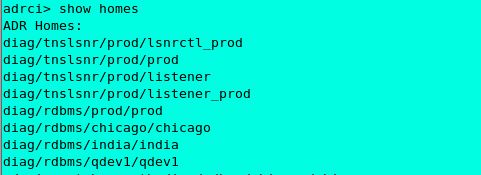
Adrci> show homes (This command will list all the available database trace directories.)
adrci> show homes
ADR Homes:
diag/tnslsnr/prod/lsnrctl_prod
diag/tnslsnr/prod/prod
diag/tnslsnr/prod/listener
diag/tnslsnr/prod/listener_prod
diag/rdbms/prod/prod
diag/rdbms/chicago/chicago
diag/rdbms/india/india
diag/rdbms/qdev1/qdev1
adrcihome
Adrci> set homepath <home path to set>(This command will use to set a specific home value (trace directory)
adrci> set homepath diag/rdbms/chicago/Chicago
sethome
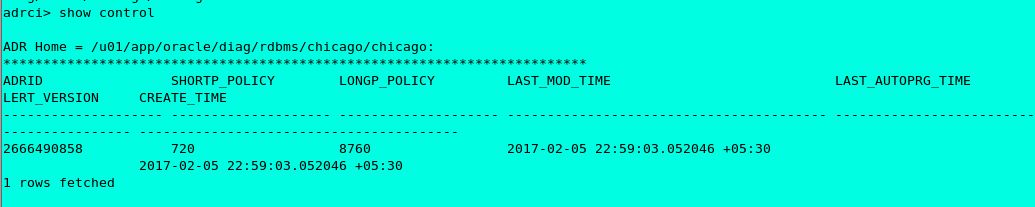
Adrci> show control
This command will list the settings of “shortp_policy”, “longp_policy” and when was the last auto purge happened.
show control1
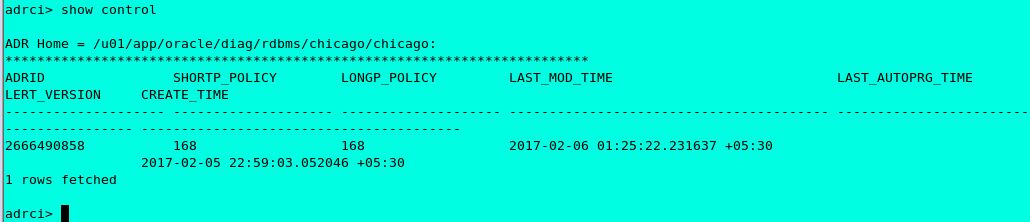
adrci > set control (SHORTP_POLICY = 168)
adrci> set control (LONGP_POLICY = 168)
This command is use to reset the short policy and long policy and this is set in hours.
After set control now sort policy and long policy is 168hr /7 days.
Adrci>Show control
showcontrol2
SHORTP POLICY (ADRCI SETTINGS) –
168 hours / 7 days (will keep last 7 days of files and delete all)
LONGP POLICY (ADRCI SETTINGS) –
168 hours / 7 days (will keep last 7 days of files and delete all)
ADRCI SETTINGS and PURGE:
Adrci> set homepath <home path to set>
adrci > set control (SHORTP_POLICY = 168)
adrci> set control (LONGP_POLICY = 168)
Purge – this will purge all the files by keeping last 7 days of files.
Adrci> purge
Manually purge the traces-
Adrci> help
Use to get help on commands.


====================================================
Automatically purging
Sometimes we are facing with space related issues due to the huge number of trace file generation. Automatic purging can help us in this situations if set short retention time for trace files.
  1. Type show homes to see current homes supported by ADRCI and set homepath.
    adrci> show homes
    ADR Homes: 
    diag/rdbms/db12c_stby/db12c_stby
    diag/rdbms/db12c_stby/db12c
    diag/rdbms/db12c_stby/DB12c
    diag/tnslsnr/Standby/listener
    diag/clients/user_oracle/host_2436394132_82
     
    adrci> set homepath diag/rdbms/db12c_stby/db12c_stby
    

  2. The automatic purging runs on schedule defined in retention policy .To check current policy for home, we can use two methods :
    adrci> show control
    
    ADR Home = /u01/app/oracle/diag/rdbms/db12c_stby/db12c_stby:
    *************************************************************************
    ADRID                SHORTP_POLICY        LONGP_POLICY         LAST_MOD_TIME                            LAST_AUTOPRG_TIME                        LAST_MANUPRG_TIME                        ADRDIR_VERSION       ADRSCHM_VERSION      ADRSCHMV_SUMMARY     ADRALERT_VERSION     CREATE_TIME                              
    -------------------- -------------------- -------------------- ---------------------------------------- ---------------------------------------- ---------------------------------------- -------------------- -------------------- -------------------- -------------------- ---------------------------------------- 
    3514698554           720                  8760                 2016-05-31 00:54:57.566484 +05:00        2016-07-07 23:27:37.789953 +05:00                                                 1                    2                    82                   1                    2016-05-31 00:54:57.566484 +05:00       
    1 rows fetched
    or
    adrci> select SHORTP_POLICY,LONGP_POLICY from ADR_CONTROL;
    
    ADR Home = /u01/app/oracle/diag/rdbms/db12c_stby/db12c_stby:
    *************************************************************************
    SHORTP_POLICY        LONGP_POLICY         
    -------------------- -------------------- 
    720                  8760                
    1 rows fetched
    By default retention is 720 hours for short policy and 8760 hours for long policy.
    Short policy include the following files :(Trace files, Core dump files, Packaging information)
    Long policy include the following files:(Incident information, Incident dumps, Alert logs)
  3. To change the retention policy :
    adrci> set control (SHORTP_POLICY=120); -- 5 days
    
    adrci> set control (LONGP_POLICY=720); -- 30 days
    
    
    --check changes
    
    adrci> select SHORTP_POLICY,LONGP_POLICY,LAST_AUTOPRG_TIME,LAST_MANUPRG_TIME from ADR_CONTROL; 
    
    ADR Home = /u01/app/oracle/diag/rdbms/db12c_stby/db12c_stby:
    *************************************************************************
    SHORTP_POLICY LONGP_POLICY LAST_AUTOPRG_TIME LAST_MANUPRG_TIME 
    -------------------- -------------------- ---------------------------------------- ---------------------------------------- 
    120 720 2016-07-07 23:27:37.789953 +05:00 2016-07-16 22:37:52.700123 +05:00 
    1 rows fetched
    
    adrci> 
    
    
    Initially automatic purging runs 2 days after instance startup, then by policy defined interval.


Manual purging
  1. Type show homes to see current homes supported by ADRCI and set homepath.
    [oracle@MAINDB ~]$ adrci
    
    ADRCI: Release 12.1.0.2.0 - Production on Tue Feb 23 19:18:42 2016
    
    Copyright (c) 1982, 2014, Oracle and/or its affiliates. All rights reserved.
    
    ADR base = "/u01/app/oracle"
    
    adrci> show homes
    ADR Homes: 
    diag/tnslsnr/MAINDB/listener
    diag/rdbms/cdb1/cdb1
    
    adrci> set homepath diag/rdbms/cdb1/cdb1


  2. To purge diagnostic data that is older than the amount of time (minutes) given in the purge command. For ex to purge diagnostic data that is over 1 day old (1440 minutes).
    adrci> PURGE -age 1440 -type ALERT
    
    --You can also pruge TRACE files with same method:
    adrci> PURGE -age 1440 -type TRACE
    
    
  3. To remove all data older than one minute use:
    adrci> PURGE -age 1 -type ALERT
    adrci> SHOW ALERT
    
    ADR Home = /u01/app/oracle/diag/rdbms/cdb1/cdb1:
    *************************************************************************
    
    No alert log in selected home
    adrci> exit

ewallet p12 vs cwallet sso

The  ewallet.p12  stores credentials and certificates protected by a user password, while  cwallet.sso  provides an obfuscated, random passw...