Monday, August 19, 2019

Useful Information about Workflow Background Process Concurrent Program

What is the purpose of Workflow Background Process

Workflow Background Process is a concurrent program which is run for processing deferred activities, timed out activities, and stuck processes using the parameters specified. The background engine executes all activities that satisfy the given arguments at the time that the background engine is invoked. This procedure does not remain running long term, so you must restart this procedure periodically. Any activities that are newly deferred or timed out or processes that become stuck after the current background engine starts are processed by the next background engine that is invoked.
Workflow Background Process is run with the help of Workflow Background Engine which is PL/SQL Procedure which runs this concurrent program with specified parameters.
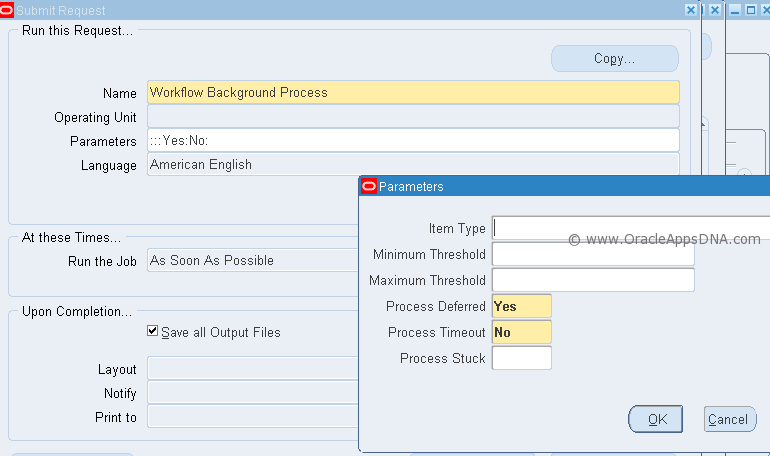
Workflow Background Process Parameters:
  • Item Type – Specify an item type to restrict this engine to activities associated with that item type. If you do not specify an item type, the engine processes any activity regardless of its item type.
  • Minimum Threshold – Specify the minimum cost that an activity must have for this background engine to execute it, in hundredths of a second.
  • Maximum Threshold – Specify the maximum cost that an activity can have for this background engine to execute it, in hundredths of a second. By using Minimum Threshold and Maximum Threshold you can create multiple background engines to handle very specific types of activities. The default values for these arguments are null so that the background engine runs activities regardless of cost.
  • Process Deferred – Specify whether this background engine checks for deferred activities. Setting this parameter to Yes allows the engine to check for deferred activities.
  • Process Timeout – Specify whether this background engine checks for activities that have timed out. Setting this parameter to Yes allows the engine to check for timed out activities.
  • Process Stuck – Specify whether this background engine checks for stuck processes. Setting this parameter to Yes allows the engine to check for stuck processes.
 Note: Make sure you have a least one background engine that can check for timed out activities, one that can process deferred activities, and one that can handle stuck processes. At a minimum, you need to set up one background engine that can handle both timed out and deferred activities as well as stuck processes.

How to run Workflow Background Process from Oracle Applications?

1. Responsibility: System Administrator
2. Navigate: Requests > Run
3. Select Workflow Background Process from the list of values.
4. Enter parameters:
Item Type = OM Order Line
Process Deferred = yes
Process Timeout = yes
5. Submit concurrent program.

How to run Workflow Background Process from SQL*Plus?

BEGIN
  wf_engine.background (itemtype=>NULL ,
                        minthreshold=>NULL ,
                        maxthreshold=>NULL ,
                        process_deferred=>TRUE ,
                        process_timeout=>FALSE ,
                        process_stuck=>FALSE);
END;

How to run Workflow Background Process from Unix?

$ $FND_TOP/Admin/Sql/wfbkg.sql

Performance Tuning of Workflow Background Process

Workflow Background Process picks and executes all eligible workflow items related to Oracle Modules like OM,AP,PO,WSH,OKL,ASN,WIP, etc
Hence if ItemType parameter is not specified the workflow background process runs will first check for all eligible workflow activities and then run for all eligible workflows this will result in poor performance. It is preferable to execute the Workflow Background Process with specified ItemType.
References: Oracle Workflow Administrator Guide

Log files location in oracle apps 11i, R12.1 and R12.2

Log files location in oracle apps 11i:

Start/Stop script log files location:
$COMMON_TOP/admin/log/CONTEXT_NAME/

OPMN log file location:
$ORACLE_HOME/opmn/logs/ipm.log

Apache, Jserv, JVM log files locations:
$IAS_ORACLE_HOME/Apache/Apache/logs/ssl_engine_log
$IAS_ORACLE_HOME/Apache/Apache/logs/ssl_request_log
$IAS_ORACLE_HOME/Apache/Apache/logs/access_log
$IAS_ORACLE_HOME/Apache/Apache/logs/error_log
$IAS_ORACLE_HOME/Apache/JServ/logs

Concurrent log file location:
$APPL_TOP/admin/PROD/log or $APPLLOG/$APPLCSF

Patch log file location:
$APPL_TOP/admin/PROD/log

Worker Log file location:
$APPL_TOP/admin/PROD/log

AutoConfig log files location:
Application Tier:
$APPL_TOP/admin/SID_Hostname/log//DDMMTime/adconfig.log

Database Tier:
$ORACLE_HOME/appsutil/log/SID_Hostname/DDMMTime/adconfig.log

Error log file location:
Application Tier:
$APPL_TOP/admin/PROD/log

Database Tier :
$ORACLE_HOME/appsutil/log/SID_Hostname


In R12, the log files are located in $LOG_HOME (which translates to $INST_TOP/logs):

Concurrent logs location:
$LOG_HOME/appl/conc - > location for concurrent requests log and out files
$LOG_HOME/appl/admin - > location for mid tier startup scripts log files

Apache Logs (10.1.3 Oracle Home which is equivalent to iAS Oracle Home - Apache, OC4J and OPMN):
$LOG_HOME/ora/10.1.3/Apache - > Location for Apache Error and Access log files
$LOG_HOME/ora/10.1.3/j2ee - > location for j2ee related log files
$LOG_HOME/ora/10.1.3/opmn - > location for opmn related log files

Forms & Reports related logs (10.1.2 Oracle home which is equivalent to 806 Oracle Home)
$LOG_HOME/ora/10.1.2/forms
$LOG_HOME/ora/10.1.2/reports

Startup/Shutdown Log files location:
$INST_TOP/apps/$CONTEXT_NAME/logs/appl/admin/log

Patch log files location:
$APPL_TOP/admin/$SID/log/

Clone and AutoConfig log files location:
Database tier: 
RDBMS $ORACLE_HOME/appsutil/log/< context >/StageDBTier_< timestamp >.log

Application tier:
$INST_TOP/admin/log/StageAppsTier_< timestamp >.log

Where the logs for the admkappsutil.pl are located? 
$INST_TOP/admin/log/MakeAppsUtil_< timestamp >.log


Log files location in R12.2:

Log files of Online patching (adop) in EBS R12.2:

The adop log files are located on the non-editioned file system (fs_ne), under:
$NE_BASE/EBSapps/log/adop/<adop_session_id>/<phase>_<date>_<time>/<context_name>/log

This log directory will contain patch logs, patch lgi and patch worker logs.
adop(phase=fs_clone) Online pathcing filesystem cloning process related log files are found under:
$INST_TOP/admin/log

Autoconfig log files location:
Applicaion Tier:
$INST_TOP/admin/log/<MMDDhhmm>

Database Tier: 
$ORACLE_HOME/appsutil/log/<CONTEXT_NAME>/<MMDDhhmm>

Log files for start/stop of services from $ADMIN_SCRIPTS_HOME:
In below directory we will find log files related to start/stop process of oacore, forms, apache, opmn,
weblogic admin server/node manager:

$LOG_HOME/appl/admin/log

Log/Out files for Concurrent programs/managers location:
Log files: $APPLCSF/$APPLLOG (or $NE_BASE/inst/<CONTEXT_NAME>/logs/appl/conc/log)
Out files: $APPLCSF/$APPLOUT (or $NE_BASE/inst/<CONTEXT_NAME>/logs/appl/conc/out)

OPMN and OHS processes log file location:
Below directory contains log files related OPMN process(opmn.log),
OPMN Debug logs(debug.log), HTTP Transaction logs (access.log),security settings related logs.

$IAS_ORACLE_HOME/instances/<ohs_instance>/diagnostics/logs


Node Manager log file location in R12.2:
Log file is generated by Node Manager and contains data for all domains that
are controlled by Node Manager on a given physical machine.

$FMW_HOME/wlserver_10.3/common/nodemanager/nmHome1/nodemanager.log

Weblogic log files location:
Initial settings for AdminServer and Domain level information is written in this log file.

$EBS_DOMAIN_HOME/sysman/log

Log files for server processes initiated through Weblogic in Oracle R12.2.4 are in below location:
Stdout and stderr messages generated by the forms, oafm and oacore services are located
at NOTICE severity level or higher are written by Weblogic Node Manager to below directory.

$EBS_DOMAIN_HOME/servers/<server_name>/logs/<server_name>.out

Oracle Apps R12 Forms Not Opening

Oracle Apps R12 Forms Not Opening

The forms for Oracle Apps EBS may not open for many reasons. Follow below steps to find out:-

For a particular Form:-
  1. It displays some message which can help you finding out the cause.
  2. Most of the time its related to some database objects or the particular form executable.
    a. Compile all ( Mainly Apps owned ) db objects.
    b. Compile particular form executable.
For All forms:-
  1. Always check the DB, and alert log.
  2. Check file system space.
  3. Check Apache and Forms log. $LOG_HOME/10.1.3/Apache/Apache/logs and$LOG_HOME/10.1.2/forms/logs
  4. If you are using R12 with IE8 then check Metalink doc 1069497.1, for Cross Site Scripting(XSS) settings (make it to relevant tab of your internet options). Also check 389422.1 for recommended browsers and settings.
  5. Check timestamp for files like $AU_TOP/resource/CUSTOM.* , this will tell you if someone has modified the pll and then the changes should be reverted back.
  6. Try checking the form sessions from your server as below
    ps -ef | grep frm
    This will show the frmsrv and frmweb processes. If it doesn't then the issue is in spawning form session.
    You can check the timestamp for frmsrv/frmweb executable, if this has got changed. You can relink this by below.
    a. Source the Application environment
    b. from location $ORACLE_HOME/forms/lib
    run :- make -f ins_forms.mk install
  7. In other case if from sessions are there and you are not able to open the form, then check the direct form login as below.
    http://server:port/forms/frmservlet - for servlet mode
    http://server:port/OA_HTML/frmservlet - for socket mode
  8. If above works then you can go to adadmin and compile jsps, or can have clear cache bounce.
  9. If step 6 doesn't work then check for dbc file present at $FND_SECURE.
    a. The file should have correct entries for Application Server Id, as it is in FND_NODES table.
    b. All the passwords guest,applsyspub etc are ok, or change the guest password using FNDCPASS
    c. You can correct the dbc file manually, or regenerate using  $COMMON_TOP/admin/install/adgendbc.sh
  10. Bounce forms server and retry.

Friday, August 16, 2019

Concurrent request log and output display with delay

To add and delete a responsibilities to user from DataBase(Backend)

To add and delete a responsibilities to user from DataBase(Backend)

--API to add responsibilities to a user

BEGIN
  fnd_user_pkg.addresp(username =>'XXTEST',
                       resp_app =>'SYSADMIN',
                       resp_key =>'SYSTEM_ADMINISTRATOR',
                       security_group =>'STANDARD',
                       description => NULL,
                       start_date =>TO_DATE('01-JAN-2000'),
                       end_date =>NULL );
  COMMIT;
END;

/
(or)
/
declare
  l_user_name      VARCHAR2(100) := UPPER('XXTEST');
  l_resp_key       VARCHAR2(100) := 'SYSTEM_ADMINISTRATOR';
  l_app_short_name VARCHAR2(100);
BEGIN
  SELECT application_short_name
INTO l_app_short_name
FROM fnd_application fa,
  fnd_responsibility fr
WHERE fa.application_id = fr.application_id
AND TRUNC(sysdate) BETWEEN start_date AND NVL(end_date, '31-dec-4712')
AND fr.responsibility_key = l_resp_key;
fnd_user_resp_groups_api.load_row
                              (x_user_name           => l_user_name,
                               x_resp_key            => l_resp_key,
                               x_app_short_name      => l_app_short_name ,
                               x_security_group      => 'STANDARD',
                               x_owner               => 'CUST',
                               x_start_date          => TO_CHAR ( SYSDATE, 'YYYY/MM/DD'),
                               x_end_date            => NULL,
                               x_description         => NULL
                              );

commit;
end;
/
--API to remove responsibilities from that user

BEGIN
  fnd_user_pkg.delresp(username =>'XXTEST',
                       resp_app =>'SYSADMIN',
                       resp_key =>'SYSTEM_ADMINISTRATOR',
                       security_group =>'STANDARD' );
  COMMIT;
END;

Oracle E-Business Suite Software Development Kit for Java (includes AppsDataSource, Java Authentication and Authorization Service, session management) Readme - Patch 13882058 (Doc ID 974949.1)

Oracle E-Business Suite Software Development Kit for Java (includes AppsDataSource, Java Authentication and Authorization Service, session management) Readme - Patch 13882058 (Doc ID 974949.1)

Personalize Customize Oracle E-Business Suite R12 Login Page

A common request after Oracle Applications R12 implementation (or after the dust settles following an upgrade from 11i to R12) is to re-brand the Login page to include company's logo, and specific look and feel.

There are 5 areas on the login page that can be customized (see screen grab below)


To customize the above regions, login to Oracle Applications as sysadmin then assign 'Functional Administrator' responsibility.

Switch to Functional Administrator responsibility then navigate to "Personalization" tab, and in the "Document Path" field enter:
'/oracle/apps/fnd/sso/login/webui/MainLoginPG' then click "Go".  In the results table, click "Personalize Page" icon, ensure the "Site" checkbox is selected then Apply.  In the "Personalization Structure" page region, click "Expand All".  The page contains the list of objects marked in the screen grab above:
1. Image (Oracle logo) /OA_MEDIA/FNDSSCORP.gif
2. Image (people image) people.jpg
3. Image (above globe) topLines.gif
4. Image (globe) globalTop.jpg
5. Image (below globe) global.jpg

Above images are located in $OA_MEDIA directory.  To customize the login page, create own versions of the images, and save them in $OA_MEDIA directory with file names prefixed with client's initials, e.g. JAGFNDSSCORP.gif   To customize the regions, click the pencil icon in the corresponding region the "Personalize" column for the image.  Locate the "Image URI" attribute, then type the new image name in the "Site" column then Apply.  Repeat the process for the remaining images.


Personalizing The Login Page

1. Attributes of the login page
It is possible to control the display of some attributes of the login page, for instance user name or password hints, language switchers, forgot password link, corporate policy message, etc.
For this, you need to set the profile option 'Local Login Mask' (FND_SSO_LOCAL_LOGIN_MASK) with a number being the sum of the mask values described in the table below:
Description
Mask value
Hint for Username (USERNAME_HINT)
01
Hint for Password (PASSWORD_HINT)
02
Cancel button (CANCEL_BUTTON)
04
Forgot Password link (FORGOT_PASSWORD_URL)
08
Registration link (REGISTER_URL)
16
Language Images (LANGUAGE_IMAGES)
32
Corporate Policy Message (SARBANES_OXLEY_TEXT)
64
* For instance the value 32 (default) displays only the language icons and value 127 will show all the attributes on the page. 

* The change takes effect immediately after re-login to E-Business Suite.

2. Message texts
It is possible to modify or add text on the login page by changing the value of some messages.
The following table shows the related messages and their default value:
DescriptionDefault value
FND_SSO_WELCOMELogin
FND_SSO_EBIZ_SUITEE-Business Suite
FND_SSO_COPYRIGHT_TEXTCopyright (c) 2007, Oracle. All rights reserved.
FND_SSO_SARBANES_OXLEY_TEXTCorporate Policy Message

To change the value of a message:
1. Go to "Application Developer" responsibility
2. Select "Messages" from the menu
3. Query  the message name and then enter your message text in the 

   "Current Message Text" field
4. Save changes and exit
5. Clear cache and bounce Apache to see the change

* Note that some messages can be used elsewhere that in the login page and can be updated by a patch
* If you want to change also the default branding 'E-Business Suite' on other pages, to match the text on the login page (defined by FND_SSO_EBIZ_SUITE message), then follow the steps below:
a. Login with System Administrator responsibility
b. Navigate: Application ---> Function
c. Query the function 'FWK_HOMEPAGE_BRAND'
d. Replace the value of the 'User Function Name' with the desired text
c. Logout and login to see the change (you shouldn't need to clear caches and bounce apache)

* The 'FND_SSO_SARBANES_OXLEY_TEXT' message is only displayed when the mask
value 64 is added to the profile option 'Local Login Mask'.
3. Corporate branding logo
The Oracle logo is displayed on various E-Business Suite pages and can be changed by setting the 'Corporate Branding Image for Oracle Applications'  (FND_CORPORATE_BRANDING_IMAGE) profile option to the full path name of an image file (.gif) that contains your corporate image.
However it is not possible to use this method for AppsLocalLogin.jsp since it is hard coded with the Oracle logo image file 'FNDSSCORP.gif'.
The non supported solution consists in:

1. Go to the $OA_HTML directory
2. Backup the AppsLocalLogin.jsp file
3. Copy your own corporate branding image under $OA_MEDIA directory
4. Edit the AppsLocalLogin.jsp file :

  from :
ImageBean imgBean1 = new ImageBean("/OA_MEDIA/FNDSSCORP.gif", FND_ORACLE_LOGO);
  to :
ImageBean imgBean1 = new ImageBean("/OA_MEDIA/<your image file name>", FND_ORACLE_LOGO);
5. Clear caches and bounce Apache to see the change

4. Other modifications
AppsLocalLogin.jsp being a Java Server Page you can change the HTML or Java code (for instance with JDeveloper), create you own messages in the Messages Dictionary thru AOL responsibility, etc., if you want to add other customizations. This is considered a customization and thus not supported by Oracle. If you apply patches replacing AppsLocalLogin.jsp the file will be overwritten.

ewallet p12 vs cwallet sso

The  ewallet.p12  stores credentials and certificates protected by a user password, while  cwallet.sso  provides an obfuscated, random passw...