Monday, November 18, 2019

Connecting to Teradata Database With LDAP Using Oracle SQL Developer

In this article, I will describe how to connect to the Teradata database via LDAP. We will do this with Oracle SQL Developer.
With Oracle SQL Developer, it is possible to connect to many databases with JDBC driver, not just an Oracle database. Some of these are DB2, Teradata, Access, MSSQL, and MySQL. In this article, I will describe how to connect to a Teradata database configured with LDAP Authentication.
I want to connect to Teradata database version 15. The version of Oracle SQL Developer is 4.1.5.
First, I need a Teradata JDBC driver to connect to Teradata from Oracle SQL Developer. You can download this driver by following the link.
After downloading the ZIP/TAR file containing the driver, we need to extract it to the appropriate location on our computer. Then, we need to show the files tdgssconfig.jar and terajdbc4.jar, which will come out of this file in Oracle SQL Developer.
We extract the files from Oracle SQL Developer by clicking on the Add Entry button in the window accessed by following the corresponding path (Tools > Preferences > Database > Third-Party JDBC Drivers). Then click the OK button to close the screen.
jar_ext
Now that we have the relevant drivers displayed, let's open the new connection setup screen through Oracle SQL Developer.
teradata
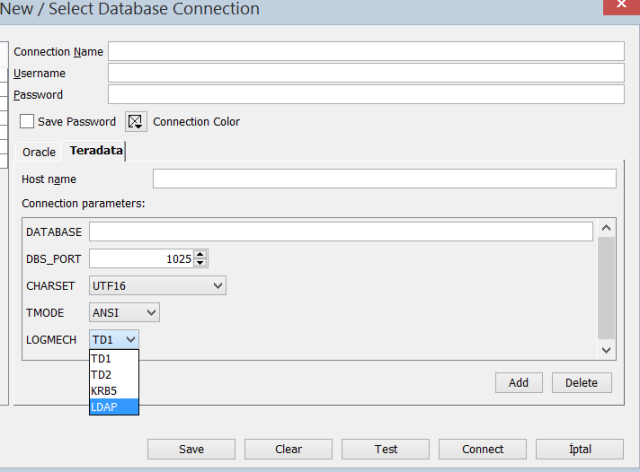
When we open the connection screen, we see that the Teradata connection tab comes right next to the Oracle option — proof that your JAR files are correctly defined. Now, we have the last step we need to make to connect. In the last step, we will add the LOGMECH parameter to our connection to determine how to provide our connection via LDAP. Since we do not have this option on the connection screen by default, we will click the Add button to add this parameter, and when we press the OK button after selecting LOGMECH parameter in the popup window, we will see that this parameter is added as a selection button on the connection setup screen. Then, we will select LDAP with this selection button and we will complete the process.
teradatacon teradatacon2
Now we can connect to the Teradata database using our LDAP information and database connection string.

Open Source Softwares

Using SQL Developer to connect to SQL Server databases


Apparently, being able to use Oracle’s SQL Developer to connect to SQL Server databases has been around for a while (via third party drivers), but I only started using it today for the first time, with SQL Developer 4 EA2 after my colleague mentioned it to me this afternoon ðŸ™‚
First of all, thanks to DJ’s blog here as a base for the instructions that follow.  Here’s how you can set this up:
  1. Download the jTDS 3rd party JDBC driver, version 1.2.8 from here (I’ve not personally tested with other versions).
  2. Save and extract the contents of the jtds-1.2.8-dist.zip file somewhere safe (I extracted mine under “C:\oracle\sqldeveloper\add-ons\jtds-1.2.8-dist\”).
  3. Start SQL Developer go to Tools > Preferences > Database > Third Party JDBC Drivers.
  4. Click “Add Entry”, point to the ‘jtds-1.2.8.jar’ file location, then select it and click OK.
  5. Create a new connection, and choose the “SQLServer” tab.
  6. Enter the following details: Connection Name (required for database retrieval), Username, Password, Hostname, and Port.
  7. Click “Retrieve database” and select the appropriate database, then Save/Test/Connect as you would do normally.
SQL Server connection in SQL Developer
You’ll notice from the screen shot above that you can also use this to connect to Sybase databases, although I’ve not tried this out myself.
UPDATE: If you at any point decide to use Windows authentication to connect (like I just did), then you might hit this error:
Status : Failure -I/O Error: SSO Failed: Native SSPI library not loaded. Check the java.library.path system property.
…I quickly found a work around, which involved copying the “..\jtds-1.2\x64\SSO\ntlmauth.dll” file from the jTDS directory to the “%JAVA_HOME%\jre\bin” folder.  Then I restarted SQL Developer and it all worked fine ðŸ˜‰

Tuesday, September 17, 2019

Linux command cheat sheet


FlashGrid Reference Architecture and Deployment Guide for Highly Available Oracle E-Business Suite in AWS

https://www.flashgrid.io/wp-content/sideuploads/resources/FlashGrid_EBS_AWS_RefArchDeploymentGuide.pdf


https://www.kb.flashgrid.io/


© 2018 FlashGrid Inc. FlashGrid Reference Architecture and Deployment Guide for Highly Available Oracle E-Business Suite in AWS rev. 18.06-2018.07.25 © 2018 FlashGrid Inc. 2 Table of Contents 1 Introduction .................................................................................................................................................................... 3 2 Architecture Highlights ................................................................................................................................................... 3 3 Supported Cluster Configurations................................................................................................................................... 4 4 Compatibility................................................................................................................................................................... 4 5 Deployment Steps........................................................................................................................................................... 4 5.1 Getting Access to FlashGrid AMI............................................................................................................................. 4 5.2 Uploading Oracle Installation Files to S3 ................................................................................................................ 4 5.3 Preparing the VPC ................................................................................................................................................... 5 5.4 Creating cluster with CloudFormation.................................................................................................................... 6 5.5 Verifying cluster health........................................................................................................................................... 7 5.6 OS User Accounts.................................................................................................................................................... 7 5.7 Changing ASM passwords....................................................................................................................................... 8 5.8 Preparing DB Nodes for EBS Installation................................................................................................................. 8 5.9 Preparing App Nodes for EBS Installation............................................................................................................... 9 5.10 Opening Network Access between App and DB Nodes........................................................................................10 5.11 Downloading EBS software ...................................................................................................................................10 5.12 Installing EBS Database Tier..................................................................................................................................12 5.13 Installing EBS APP Tier...........................................................................................................................................25 5.14 Adding a node to APP Tier ....................................................................................................................................28 5.15 Configuring TNS parameters on APP Tier .............................................................................................................29 5.16 Enabling Strict Read-Local Mode for a New Database .........................................................................................30 5.17 Enabling instance termination protection ............................................................................................................30 6 Uninstalling EBS software .............................................................................................................................................31 6.1 Uninstalling APP Tier.............................................................................................................................................31 6.2 Uninstalling DB Tier...............................................................................................................................................31 7 Monitoring Cluster Health ............................................................................................................................................31 8 Deleting a cluster ..........................................................................................................................................................32 9 Additional Information..................................................................................................................................................32 10 Contacting FlashGrid Technical Support.......................................................................................................................33 © 2018 FlashGrid Inc. 3 1 Introduction Running highly available Oracle E-Business Suite in AWS requires having the database tier based on Oracle Real Application Clusters (RAC). FlashGrid Cloud Area Network software and FlashGrid Storage Fabric software enable running Oracle RAC clusters in AWS cloud. FlashGrid Cloud Provisioning simplifies the deployment process by automating configuration of multiple components required for an Oracle RAC cluster, including Grid Infrastructure. Oracle RAC has the following infrastructure requirements that are not directly available in AWS:  Shared high-performance storage accessible from all database nodes  Multicast enabled network between all database nodes  Separate networks for different types of traffic: client, cluster interconnect, and storage FlashGrid Storage Fabric™ and FlashGrid Cloud Area Network™ software address these requirements and enable running highly available Oracle E-Business Suite clusters with Oracle RAC database in AWS. This document provides architectural overview of the solution and step-by-step instructions for system and database administrators deploying Oracle E-Business Suite in AWS. Additional information about running Oracle RAC in AWS is available in the following white paper: “Mission-Critical Databases in the Cloud. Oracle RAC on Amazon EC2 Enabled by FlashGrid®.” 2 Architecture Highlights  FlashGrid Cloud Area Network™ enables high-speed overlay networks with multicast and virtual IP support for transparent connectivity between the database and app tier nodes.  FlashGrid Storage Fabric turns local drives (elastic block storage or local instance-store SSDs) into shared drives accessible from all nodes in the cluster  FlashGrid Read‑Local™ Technology minimizes network overhead by serving reads from local drives  2-way or 3-way mirroring of data across separate nodes or Availability Zones  Oracle ASM and Clusterware provide data protection and availability Figure 1. EBS cluster with 2 DB nodes and 2 APP nodes. (Quorum node not shown) © 2018 FlashGrid Inc. 4 3 Supported Cluster Configurations The FlashGrid architecture enables variety of EBS cluster configurations in AWS. This document focuses on a configuration with two database nodes and two app tier nodes. However, the architecture can be extended to a larger number of nodes. Two or three node database tier clusters are recommended in most cases. Clusters with four or more database nodes can be used for extra HA or performance. Nodes of a cluster can be in one availability zone or can be spread across availability zones. 4 Compatibility The following versions of software are covered in this guide:  Oracle E-Business suite 12.2  Oracle Grid Infrastructure: ver. 12.2.0.1 with April'18 Release Update  Operating System: Oracle Linux 7  FlashGrid Storage Fabric: ver. 18.06  FlashGrid Cloud Area Network: ver. 18.03 The solution can be deployed on the following Amazon EC2 instance types: M4, M5, R4, i3, X1, X1E. 5 Deployment Steps 5.1 Getting Access to FlashGrid AMI To be able to create cluster your AWS account must have a subscription to a FlashGrid AMI via AWS Marketplace. FlashGrid AMIs are based on either Oracle Linux 7 or RHEL 7. Please contact your FlashGrid representative if you need to customize the AMI. To get access to the FlashGrid AMI 1. Open FlashGrid product page at AWS Marketplace 2. Click Continue button 3. Select Manual Launch tab 4. Click Accept Software Terms button 5.2 Uploading Oracle Installation Files to S3 During cluster provisioning Oracle installation files will be downloaded from an S3 bucket. The following files must be placed in the S3 bucket:  oracle-instantclient12.2-basic-12.2.0.1.0-1.x86_64.rpm  linuxx64_12201_grid_home.zip  p27468969_122010_Linux-x86-64.zip (GI APR 2018 RELEASE UPDATE 12.2.0.1.180417. Requires Oracle support subscription.)  p6880880_122010_Linux-x86-64.zip (OPatch patch, Release: OPatch 12.2.0.1.0, Platform: Linux x86-64. Requires Oracle support subscription.) Two options are available for allowing access to the files in the S3 bucket for the cluster node instances:  Enabling public access to each file for the duration of cluster provisioning © 2018 FlashGrid Inc. 5 OR  Assigning the cluster node instances an IAM role that has permissions for accessing files in the bucket To allow public access to the files in S3 1. Create an S3 bucket/folder for uploading the installation files 2. Upload the required files to the S3 bucket/folder 3. In S3 Management Console navigate to the bucket and the folder to see the list of files 4. Select all files 5. Click More -> Make Public 6. You can disable public access after the cluster completes initialization To use an IAM role for access to the files in S3 1. Create an S3 bucket/folder for uploading the installation files 2. Upload the required files to the S3 bucket/folder 3. In IAM Management Console create a new policy named GetOracleFilesFromS3 that allows s3:GetObject action on all uploaded files. See an example below. 4. In IAM Management Console create a new role named GetOracleFilesFromS3 and attach the GetOracleFilesFromS3 policy to it. 5. Use the GetOracleFilesFromS3 role when configuring cluster parameters in the FlashGrid Cloud Provisioning tool. Example of an IAM policy: { "Version": "2012-10-17", "Statement": [ { "Sid": "Stmt1508867055000", "Effect": "Allow", "Action": [ "s3:GetObject" ], "Resource": [ "arn:aws:s3:::mybucket/mydirectory/*" ] } ] } 5.3 Preparing the VPC When creating a new cluster you have two options:  Automatically create a new VPC. This option is usually used for test clusters isolated in their own sandbox VPCs. A VPC will be created together with the required subnets, placement group(s), and security groups. By default the VPC will be created with CIDR 10.100.0.0/16  Create the cluster in an existing VPC. This option is used for majority of production deployments where other systems (e.g. app servers) share the same VPC as the cluster. You will need to provide the VPC ID in the Cloud Provisioning tool and subnet IDs and security group IDs in the CloudFormation Manager. If using an existing VPC then make sure that the following pre-requisites are met before creating a cluster: © 2018 FlashGrid Inc. 6  The VPC has a subnet in each of the availability zones used for the cluster nodes.  The VPC has an S3 endpoint configured (required unless public IPs can be enabled for access to S3)  The VPC has a security group with the following ports open for inbound traffic: o UDP ports 4801, 4802, 4803 between any members of the security group o TCP ports 1521, 1522, 1528 for SCAN and Local Listener access to the database nodes from app servers and other database clients. These are default port numbers that can be changed in the Cloud Provisioning tool. o TCP port 22 for SSH access to the cluster nodes o TCP port 5901 if you choose to use VNC for running Oracle tools in GUI mode  Create a Spread Placement Group that will be used for the VM instances. The use of the spread placement group is not required only if each VM is placed in a separate availability zone, e.g. 2 db nodes + 1 quorum node across three AZs, or 3 db nodes + 2 quorum nodes across five AZs. It is required in all other cases to guarantee that all nodes are running on separate physical hosts. 5.4 Creating cluster with CloudFormation The FlashGrid Cloud Provisioning tool simplifies provisioning of Oracle Grid Infrastructure cluster by automating the following tasks:  Creating and configuring EC2 VPC, subnets, security group (optional)  Creating EC2 instances for database, quorum, and app tier nodes  Creating EBS volumes  Installing and configuring FlashGrid Cloud Area Network  Installing and configuring FlashGrid Storage Fabric  Installing and patching Oracle Grid Infrastructure software  Configuring Grid Infrastructure cluster  Creating ASM disk groups To create a cluster 7. Log in to AWS Management Console with a user account that has the following privileges:  AWSCloudFormationFullAccess  AmazonEC2FullAccess  AmazonVPCFullAccess (required only if creating a new VPC) 8. Open FlashGrid Cloud Provisioning tool for EBS: https://1806.cloudprov.flashgrid.io/upload?s3_file=18.06/AWS-2nodes-for-EBS-Marketplace.cfg 9. Configure parameters of the cluster 10. Click Verify button 11. If verification passes then click Create Cluster button, which will take you to AWS CloudFormation Manager 12. Click Next 13. Select your SSH key 14. If using an existing VPC, then select a spread placement group, subnet(s), and security group. 15. Click Next 16. Click Next (if you added tags at the cluster configuration page then do not add the same tags in CloudFormation Manager) 17. Click Create 18. Wait until the status of the stack changes to CREATE_COMPLETE 19. If creating the stack fails: a) Check for the cause of the failure on the Events tab b) Correct the cause of the error c) Delete the failed stack © 2018 FlashGrid Inc. 7 d) Repeat the steps for creating a new stack 20. Get IP addresses of the newly launched instances on the Outputs tab 21. SSH to the first (as it was specified on the cluster configuration page) cluster node as user fg@ 22. If the cluster initialization is still in progress or failed then you will see a corresponding welcome message. If there is no welcome message then the cluster initialization has completed successfully. 23. Wait for cluster initialization (including Oracle software installation and configuration) to complete. You will receive a broadcast message when initialization completes or fails. Cluster initialization takes approximately 90 minutes. 5.5 Verifying cluster health On any of the cluster nodes run flashgrid-cluster command to verify that the cluster status is Good and all checks are passing. [fg@rac1 ~]$ flashgrid-cluster FlashGrid 18.06.29.46032 #95f2b5603f206af26482ac82386b1268b283fc3c License: via Marketplace Subscription Support plan: 24x7 ~~~~~~~~~~~~~~~~~~~~~~~~~~~~~~~~~~~~~~~~~~~~~~~~~~~~~~~~~~~~~~~~~~~~~~~~~~~~~~~~ FlashGrid running: OK Clocks check: OK Configuration check: OK Network check: OK Querying nodes: quorum, rac1, rac2 ... Cluster Name: myrac Cluster status: Good -------------------------------------------------------------- Node Status ASM_Node Storage_Node Quorum_Node Failgroup -------------------------------------------------------------- rac1 Good Yes Yes No RAC1 rac2 Good Yes Yes No RAC2 racq Good No No Yes QUORUM -------------------------------------------------------------- -------------------------------------------------------------------------------------------------------- GroupName Status Mounted Type TotalMiB FreeMiB OfflineDisks LostDisks Resync ReadLocal Vote -------------------------------------------------------------------------------------------------------- GRID Good AllNodes NORMAL 12588 3376 0 0 No Enabled 3/3 DATA Good AllNodes NORMAL 2048000 2048000 0 0 No Enabled None FRA Good AllNodes NORMAL 1024000 1024000 0 0 No Enabled None -------------------------------------------------------------------------------------------------------- 5.6 OS User Accounts During cluster initialization the following OS user accounts are created:  fg - the user account used to SSH to the VMs with the SSH key that was selected when creating the cluster configuration. It can also be used for running FlashGrid Storage Fabric or FlashGrid Cloud Area Network utilities. The user fg has sudo rights.  grid - Grid Infrastructure owner. GI environment variables are preconfigured.  oracle - Database home owner. Database environment variables, except ORACLE_SID and ORACLE_UNQNAME, are preconfigured. After creating a database you can configure ORACLE_SID and ORACLE_UNQNAME by editing /home/oracle/.bashrc file on each database node. Note that no passwords are configured for any users. Also password-based SSH authentication is disabled in /etc/ssh/sshd_config. Key-based authentication is recommended for better security. Creating passwords for any user is not recommended. © 2018 FlashGrid Inc. 8 User fg has sudo rights and allows switching to any other user without requiring a password (which is not configured by default). Example: $ sudo su - grid Users fg, grid, and oracle have key-based SSH access configured between the nodes of the cluster. The corresponding key pairs are generated automatically during cluster initialization. For example, if you are logged in to node1 as user fg then you can SSH into node2 by simply running 'ssh node2' without entering a password or providing a key. 5.7 Changing ASM passwords A temporary password for ASM users SYS and ASMSNMP is configured during cluster initialization. The temporary password is "MyPassword2017". Use the following commands to set new password(s): $ sudo su - grid $ sqlplus / as sysasm SQL> alter user sys identified by "MyNewPassword"; SQL> alter user asmsnmp identified by "MyNewPassword"; 5.8 Preparing DB Nodes for EBS Installation Perform the following tasks on each of the database nodes. 1. Add entries in /etc/hosts corresponding to each database node's fg-pub IP (192.168.1.x subnet) and App node's VPC Private IP using the following format: [ip_address] [node_name].[domain_name] [node_name] Example: 192.168.1.1 rac1.example.com rac1 192.168.1.2 rac2.example.com rac2 10.100.100.101 app1.example.com app1 10.100.100.102 app2.example.com app2 2. Modify iptables  on DB node 1: -A PREROUTING -i eth0 -p tcp -m tcp --dport 1528 -j DNAT --to-destination 192.168.1.1  on DB node 2: -A PREROUTING -i eth0 -p tcp -m tcp --dport 1528 -j DNAT --to-destination 192.168.1.2 3. Restart iptables service: # systemctl restart iptables.service 4. Add one of the following lines to /etc/oratab file:  on DB node 1: +ASM1:/u01/app/12.2.0/grid:N  on DB node 2: +ASM2:/u01/app/12.2.0/grid:N 5. Install rpms for EBS: © 2018 FlashGrid Inc. 9 # yum install -y --enablerepo=ol7_addons oracle-ebs-server-R12-preinstall # ldconfig -v 6. Create a directory for EBS installation: # mkdir /ebs/Install # chown -R oracle:oinstall /ebs # chmod -R 775 /ebs 7. Modify the following entry in /etc/security/limits.conf: oracle hard memlock unlimited 8. On DB nodes only, add user oracle to asmadmin group: # usermod -a -G asmadmin oracle 5.9 Preparing App Nodes for EBS Installation 1. Launch App node instances using the same FlashGrid AMI used for the database nodes. Place the App nodes in the same VPC used for the DB nodes or in a peered VPC. 2. Add HOSTNAME, DOMAINNAME, and 'NOZEROCONF=yes' parameters in /etc/sysconfig/network. Example: # cat /etc/sysconfig/network HOSTNAME=app1 DOMAINNAME=example.com NOZEROCONF=yes 3. Add entries in /etc/hosts corresponding to each DB and App node's VPC Private IP using the following format: [ip_address] [node_name].[domain_name] [node_name] Example: 10.100.0.1 rac1.example.com rac1 10.100.0.2 rac2.example.com rac2 10.100.0.101 app1.example.com app1 10.100.0.102 app2.example.com app2 4. Add records on the DNS servers used by the App nodes On the DNS server(s) used by clients, for each database node add two records resolving to the VPC Private IP address of the node VM:  Hostname of the database node  SCAN address Example for a 2-node cluster: rac1.example.com 10.100.0.1 rac2.example.com 10.100.0.2 © 2018 FlashGrid Inc. 10 myrac-scan.example.com 10.100.0.1 myrac-scan.example.com 10.100.0.2 5. Install rpms for EBS: # yum install -y --enablerepo=ol7_addons oracle-ebs-server-R12-preinstall # ldconfig -v 6. On APP nodes only, add 300G size disk and create a filesystem for EBS installation: # pvcreate /dev/xvdz # vgcreate ebs_vg /dev/xvdz # lvcreate -l 100%FREE ebs_vg # mkfs -t ext4 /dev/ebs_vg/lvol0 # mkdir /ebs # mount /dev/ebs_vg/lvol0 /ebs 7. On APP nodes only, add mount point in /etc/fstab: /dev/ebs_vg/lvol0 /ebs ext4 defaults 0 0 8. Create a directory for EBS installation: # mkdir /ebs/Install # chown -R oracle:oinstall /ebs # chmod -R 775 /ebs 5.10 Opening Network Access between App and DB Nodes 1. Make sure that ICMP traffic is open between DB and App servers in the corresponding AWS security group settings. 2. Make sure TCP ports 1521, 1522, and 1528 are open from App to DB servers in the corresponding AWS security group settings. 5.11 Downloading EBS software 1. Open https://edelivery.oracle.com/: 2. In search box enter: "Oracle E-Business Suite 12.2.7.0.0" 3. Select the required components, select Linux x86_64 platform, and click Continue: © 2018 FlashGrid Inc. 11 4. Agree to the license terms and continue: 5. Click on WGET options: 6. Click Download .sh button in the popup window: 1. Place the wget.sh file in /ebs/Install directory on the first DB node (e.g. rac1) and on the first App node (e.g. app1) and run it to download the files using your Oracle account: # chmod 777 /ebs/Install/wget.sh # chown -R oracle:oinstall /ebs # sudo su - oracle $ cd /ebs/Install $ ./wget.sh SSO User Name:myname@mycompany.com SSO Password: Note: After entering password, press Enter twice. © 2018 FlashGrid Inc. 12 2. When download is finished, unzip parts of StartHere CD on the first database node and the first app node. Names of zip files that contain startCD can be identified from the download page: $ cd /ebs/Install $ unzip V100052-01_"*".zip $ chmod -R 777 /ebs/Install 5.12 Installing EBS Database Tier 5.12.1 Create stage area on the first database node (e.g. rac1) [oracle@rac1 ~]$ cd /ebs/Install/startCD/Disk1/rapidwiz/bin/ [oracle@rac1 ~]$ ./buildStage.sh Press Enter to continue... Build Stage Menu ------------------------------------------------------ 1. Create new stage area 2. Copy patches to existing stage area 3. List files in TechPatches directory 4. Exit menu Enter your choice [4]: 1 Rapid Install Platform Menu ------------------------------------------------------ 1. Oracle Solaris SPARC (64-bit) 2. Linux x86 (64-bit) 3. IBM AIX on Power Systems (64-bit) 4. HP-UX Itanium 5. Exit Menu Enter your choice [5]: 2 Running command: … Specify the directory containing the zipped installation media: /ebs/Install … ------------------------------------------------------ 1. Create new stage area 2. Copy patches to existing stage area 3. List files in TechPatches directory 4. Exit menu Enter your choice [4]: 4 © 2018 FlashGrid Inc. 13 5.12.2 Patch adrun12c.sh script According to Doc 2041374.1, Grid Infrastructure version 12.1 has the bug 16875041 when using connection pooling. As a result, during the installation script adrun12c.sh hangs waiting for the following command to complete: sh -c "asmcmd ls $DATAFILES" To avoid this bug during the installation, backup and patch the adrun12c.sh script on the first database node (e.g. rac1): $ cp /ebs/Install/startCD/Disk1/rapidwiz/template/adrun12c.sh /ebs/Install/startCD/Disk1/rapidwiz/template/adrun12c_backup.sh $ sed -i -e 's/asmcmd/asmcmd --nocp/g' /ebs/Install/startCD/Disk1/rapidwiz/template/adrun12c.sh 5.12.3 Patch rapidwiz template file to avoid NTP check error CHRONYD service is installed instead of NTPD for NTP synchronization. This patch prevents NTP check failure. # cp /ebs/Install/startCD/Disk1/rapidwiz/TechInstallers/DBInstallHome/fnd/admin/template/txkCfgDB12cR1_tmpl.xml /ebs/Install/startCD/Disk1/rapidwiz/TechInstallers/DBInstallHome/fnd/admin/template/txkCfgDB12cR1_tmpl_backup.xml # sed -i -e 's/ignoreSysPrereqs/ignoreSysPrereqs -ignorePrereq/g' /ebs/Install/startCD/Disk1/rapidwiz/TechInstallers/DBInstallHome/fnd/admin/template/txkCfgDB12cR1_tmpl.xml 5.12.4 Run rapidwiz Configure X11 Forwarding, run rapidwiz on the first database node (e.g. rac1), and select options according to the screenshots below: [oracle@rac1~]$ /ebs/Install/startCD/Disk1/rapidwiz/rapidwiz © 2018 FlashGrid Inc. 14 © 2018 FlashGrid Inc. 15 Note: At the port selection screen check that the database port (in our case 1528) is available on each DB node. The following command must return empty results on each DB node: # netstat -nltp|grep 1528 © 2018 FlashGrid Inc. 16 © 2018 FlashGrid Inc. 17 © 2018 FlashGrid Inc. 18 © 2018 FlashGrid Inc. 19 Fill Application Tier details: © 2018 FlashGrid Inc. 20 © 2018 FlashGrid Inc. 21 © 2018 FlashGrid Inc. 22 © 2018 FlashGrid Inc. 23 5.12.5 Configure LOCAL_LISTENER parameter On each DB node, create IFILE that is indicated at the end of /tnsnames.ora and add NODEFQDN entry. DB node 1: $ . /ebs/oracle/PROD/12.1.0/PROD1_rac1.env $ cat $TNS_ADMIN/tnsnames.ora |grep IFILE IFILE=/ebs/oracle/PROD/12.1.0/network/admin/PROD1_rac1/PROD1_rac1_ifile.ora $ vi $TNS_ADMIN/PROD1_rac1_ifile.ora DONOTDELETE,NODEFQDN = (ADDRESS = (PROTOCOL = TCP)(Host = rac1.example.com)(Port = 1528)) Set local_listener parameter: $ . /ebs/oracle/PROD/12.1.0/PROD1_rac1.env $ sqlplus / as sysdba SQL> ALTER SYSTEM SET LOCAL_LISTENER="NODEFQDN" scope=both sid='PROD1'; DB node 2: $ . /ebs/oracle/PROD/12.1.0/PROD2_rac2.env $ cat $TNS_ADMIN/tnsnames.ora |grep IFILE IFILE=/ebs/oracle/PROD/12.1.0/network/admin/PROD2_rac2/PROD2_rac2_ifile.ora © 2018 FlashGrid Inc. 24 $ vi $TNS_ADMIN/PROD2_rac2_ifile.ora DONOTDELETE,NODEFQDN = (ADDRESS = (PROTOCOL = TCP)(Host = rac2.example.com)(Port = 1528)) Set local_listener parameter: $ . /ebs/oracle/PROD/12.1.0/PROD2_rac1.env $ sqlplus / as sysdba SQL> ALTER SYSTEM SET LOCAL_LISTENER="NODEFQDN" scope=both sid='PROD2'; 5.12.6 Enable SCAN support: On each DB node, regenerate context file and run AutoConfig. DB node 1: $ . /ebs/oracle/PROD/12.1.0/PROD1_rac1.env $ /ebs/oracle/PROD/12.1.0/appsutil/bin/adbldxml.pl … Enter Database Service Name: PROD Do you want to enable SCAN addresses[N]:Y Specify value for s_scan_name[]: myebs-scan Specify value for s_scan_port[]:1521 Enter the value for Display Variable: localhost:1 … $ /ebs/oracle/PROD/12.1.0/appsutil/scripts/PROD1_rac1/adautocfg.sh DB node 2: $ . /ebs/oracle/PROD/12.1.0/PROD2_rac2.env $ /ebs/oracle/PROD/12.1.0/appsutil/bin/adbldxml.pl … Enter Database Service Name: PROD Do you want to enable SCAN addresses[N]:Y Specify value for s_scan_name[]: myebs-scan Specify value for s_scan_port[]:1521 Enter the value for Display Variable: localhost:1 … $ /ebs/oracle/PROD/12.1.0/appsutil/scripts/PROD2_rac2/adautocfg.sh Note: If the installation failed, because of some misconfiguration, you can re-run DB tier installation using saved configuration file without going through all the configuration steps again: © 2018 FlashGrid Inc. 25 1. Create copy of the configuration file: $ cp /ebs/oracle/PROD/12.1.0/appsutil/conf_PROD.txt /tmp/conf_PROD.txt 2. Clean up failed software, please see section 6. Uninstalling Software. 3. Rerun it as follows: [oracle@rac1 ~]$ /ebs/Install/startCD/Disk1/rapidwiz/rapidwiz -silent -config /tmp/conf_PROD.txt 5.13 Installing EBS APP Tier 5.13.1 Create stage area on the first app node (e.g. app1) [oracle@app1 ~]$cd /ebs/Install/startCD/Disk1/rapidwiz/bin/ [oracle@app1 ~]$./buildStage.sh Press Enter to continue... Build Stage Menu ------------------------------------------------------ 1. Create new stage area 2. Copy patches to existing stage area 3. List files in TechPatches directory 4. Exit menu Enter your choice [4]: 1 Rapid Install Platform Menu ------------------------------------------------------ 1. Oracle Solaris SPARC (64-bit) 2. Linux x86 (64-bit) 3. IBM AIX on Power Systems (64-bit) 4. HP-UX Itanium 5. Exit Menu Enter your choice [5]: 2 Running command: … Specify the directory containing the zipped installation media: /ebs/Install … ------------------------------------------------------ 1. Create new stage area 2. Copy patches to existing stage area 3. List files in TechPatches directory 4. Exit menu Enter your choice [4]: 4 5.13.2 Copy configuration from database node to the app node 1. Copy /ebs/oracle/PROD/12.1.0/appsutil/conf_PROD.txt from the first database node to /tmp on the first app node (e.g. app1). 2. Set necessary permissions for the copied file: [root@app1 tmp]# chmod a+r /tmp/conf_PROD.txt © 2018 FlashGrid Inc. 26 5.13.3 Add inventory location in /etc/oraInst.loc [root@app1 ~]# cat /etc/oraInst.loc inventory_loc=/ebs/oracle/oraInventory inst_group=oinstall Double-check that there is no extra space after "/ebs/oracle/oraInventory". 5.13.4 Run rapidwiz on the first App node: Configure X11 forwarding and run rapidwiz. [oracle@app1 ~]$ /ebs/Install/startCD/Disk1/rapidwiz/rapidwiz -silent -config /tmp/conf_PROD.txt 5.13.5 Log in to EBS 1. Find login URL at the end of the installation log file or by querying the EBS database: [oracle@rac1 ~]$ . /ebs/oracle/PROD/12.1.0/PROD1_rac1.env [oracle@rac1 ~]$ sqlplus apps/apps SQL> SELECT home_url FROM icx_parameters; HOME_URL ---------------------------------------------------------------------- http://app1.example.com:8007/OA_HTML/AppsLogin 2. Make sure port 8007 (TCP) is open via the EC2 security group settings. 3. Make sure the server address is resolvable from the client system by adding the app node servers to either the DNS server, or to /etc/hosts on the client. 4. Use the following default credentials: Username: SYSADMIN Password: SYSADMIN © 2018 FlashGrid Inc. 27 5.13.6 Start OPMN managed processes Before starting processes, some configuration files must be corrected: 1. Find remote port number [root@app1 ~]# cat /ebs/oracle/PROD/fs1/EBSapps/10.1.2/opmn/conf/opmn.xml | grep remote 2. Modify /ebs/oracle/PROD/fs1/EBSapps/10.1.2/opmn/conf/ons.conf as follows: nodes=: Example: nodes=app1.example.com:6001 3. Download and apply the patch 6078836 from My Oracle Support to fix an issue with the Oracle HTTP Server (missing libdb.so.2). Place libdb.so.2 in /usr/lib and set the necessary permissions: [root@app1 ~]# chmod 755 /usr/lib/libdb.so.2 4. Create the following soft link: [root@app1 ~]# ln -s /usr/lib/libdb-4.7.so /usr/lib/libdb-4.3.so 5. Change group name from autobldgrp to oinstall in httpd.conf file: [root@app1 ~]# sed -i -e 's/autobldgrp/oinstall/' /ebs/oracle/PROD/fs1/EBSapps/10.1.2/Apache/Apache/conf/httpd.conf 6. Change group name in webcache.conf file: [root@app1 ~]# sed -i -e 's/autobldgrp/oinstall/' /ebs/oracle/PROD/fs1/EBSapps/10.1.2/webcache/webcache.xml 7. Run autoconfig: © 2018 FlashGrid Inc. 28 [root@app1 ~]# su – oracle [oracle@app1 ~]$ /ebs/oracle/PROD/fs1/inst/apps/PROD_app1/admin/scripts/adautocfg.sh 8. In case vncserver is running, stop it to free up port 6001: [oracle@app1 ~]$ vncserver -kill :1 9. Start processes using opmnctl and check that the status is Alive for each component: [oracle@app1 ~]$/ebs/oracle/PROD/fs1/EBSapps/10.1.2/opmn/bin/opmnctl startall [oracle@app1 ~]$/ebs/oracle/PROD/fs1/EBSapps/10.1.2/opmn/bin/opmnctl startproc iascomponent=LogLoader [oracle@app1 ~]$/ebs/oracle/PROD/fs1/EBSapps/10.1.2/opmn/bin/opmnctl startproc iascomponent=dcm-daemon [oracle@app1 ~]$/ebs/oracle/PROD/fs1/EBSapps/10.1.2/opmn/bin/opmnctl status -------------------+--------------------+---------+--------- ias-component | process-type | pid | status -------------------+--------------------+---------+--------- LogLoader | logloaderd | 22250 | Alive HTTP_Server | HTTP_Server | 22113 | Alive dcm-daemon | dcm-daemon | 22286 | Alive WebCache | WebCache | 22129 | Alive WebCache | WebCacheAdmin | 22115 | Alive OC4J | home | 22116 | Alive 5.14 Adding a node to APP Tier This section provides high-level steps for adding a node to the App tier. For detailed instructions see Doc ID 1383621.1 Section 5.3 Adding a New Application Tier Node to an Existing System. 1. Follow 5.6 Configuring OS for EBS installation and 5.7 Configuring NTP service sections for preparing the new application node. 2. Apply the AD/TXK (Delta) patches on the source. 3. On DB nodes only, update the tcp.invited_nodes parameter in sqlnet.ora and add host.domain for the new node being added. For changes to take effect restart PROD listener. 4. On app2, add inventory location in /etc/oraInst.loc. 5. On app1, start admin server from Run and Patch Edition File Systems. 6. Run adpreclone.pl on Run and Patch Edition File Systems in the primary application tier node. 7. Setup SSH Key-Based Authentication between application nodes. 8. Copy the Run Edition File System to the target secondary node. Only the following directories should be copied: © 2018 FlashGrid Inc. 29 9. Execute adcfgclone.pl to clone both the Run and Patch file system. 10. Register the newly added application tier node with the application tier TNS listener. 11. If the Node Manager service is up on the Patch Edition File System of the newly added application tier node, shut it down. 12. Shut down the Admin Server and the Node Manager on the Patch Edition File System of the primary node. 13. Run AutoConfig on all database tier nodes to add the newly added node to the Access Control List. 14. Start services on application nodes. 15. Make sure the server address is resolvable from the client system by adding the app node servers to either the DNS server, or to /etc/hosts on the client. After adding new nodes, refer to My Oracle Support Knowledge Document 1375686.1, Using Load-Balancers with Oracle E-Business Suite Release 12.2, for details on how to set up load balancing. 5.15 Configuring TNS parameters on APP Tier The following parameters must be specified in the connect string:  TRANSPORT_CONNECT_TIMEOUT=3 The time, in seconds, for a client to establish a TCP connection to the database server. The default value is 60 seconds. It must be changed to avoid a long wait in case one of the database servers is down.  RETRY_COUNT=6 The number of connection attempts before the connection is terminated. Add new TNS alias that contains the above parameters in IFILE indicated at the end of $INST_TOP/ora/10.1.2/network/admin/tnsnames.ora: Example: $ . /ebs/oracle/PROD/fs1/EBSapps/appl/PROD_app1.env $ cat $INST_TOP/ora/10.1.2/network/admin/PROD_app1_ifile.ora PROD_BALANCE2= (DESCRIPTION=(TRANSPORT_CONNECT_TIMEOUT=3)(RETRY_COUNT=6) (ADDRESS=(PROTOCOL=tcp)(HOST=myebs-scan.example.com)(PORT=1521)) (CONNECT_DATA= (SERVICE_NAME=PROD) ) ) Update the following variables in application context file by the following way: $ . /ebs/oracle/PROD/fs1/EBSapps/appl/PROD_app1.env $ java oracle.apps.ad.context.UpdateContext $CONTEXT_FILE s_apps_jdbc_connect_alias PROD_BALANCE2 © 2018 FlashGrid Inc. 30 $ java oracle.apps.ad.context.UpdateContext $CONTEXT_FILE s_tools_twotask PROD_BALANCE2 $ java oracle.apps.ad.context.UpdateContext $CONTEXT_FILE s_weboh_twotask PROD_BALANCE2 $ java oracle.apps.ad.context.UpdateContext $CONTEXT_FILE s_cp_twotask PROD_BALANCE2 $ java oracle.apps.ad.context.UpdateContext $CONTEXT_FILE s_apps_jdbc_connect_descriptor "jdbc:oracle:thin:@(DESCRIPTION=(TRANSPORT_CONNECT_TIMEOUT=3)(RETRY_COUNT=6)(ADDR ESS=(PROTOCOL=tcp)(HOST=myebsscan.example.com)(PORT=1521))(CONNECT_DATA=(SERVICE_NAME=PROD)))" $ java oracle.apps.ad.context.UpdateContext $CONTEXT_FILE s_jdbc_connect_descriptor_generation false Run AutoConfig: $ adautocfg.sh Restart App Tier services: $ adstpall.sh apps/apps Enter the WebLogic Server password: welcome1 $ adstrtal.sh apps/apps Enter the WebLogic Server password: welcome1 5.16 Enabling Strict Read-Local Mode for a New Database It is recommended that Strict Read-Local mode is enabled for every new database. ASM does not allow reads from disks that are resynchronizing data (SYNCING state) after being offline. As a result, if database is running on a node whose local disks are in SYNCING state, all reads will be performed remotely over the network. This may result in lower performance of the database instance on a node that has just rebooted and is still resynchronizing its data. Strict Read-Local mode prevents such performance asymmetry between nodes. When the Strict Read-Local mode is enabled, a database instance start will be delayed until its local disks complete resynchronization. Use the following commands to enable, disable, and show status of Strict Read-Local mode: $ flashgrid-cluster strict-read-local-enable $ flashgrid-cluster strict-read-local-disable $ flashgrid-cluster strict-read-local-show Note that enabling Strict Read-Local mode changes the setting only for existing databases. Re-running the enable command is required after creating new database(s). Note that in order to unmount a disk group while Strict Read-Local mode is enabled, srvctl stop diskgroup command with -force option must be used. Example: $ srvctl stop diskgroup -diskgroup DGNAME -node rac1,rac2 -force 5.17 Enabling instance termination protection It is strongly recommended to enable instance termination protection for all cluster nodes. © 2018 FlashGrid Inc. 31 6 Uninstalling EBS software 6.1 Uninstalling APP Tier Delete the software directory and restart the server: # rm -rf /ebs/oracle # reboot 6.2 Uninstalling DB Tier 1. On each DB node Delete the following home entries from /u01/app/oraInventory/ContentsXML/inventory.xml 2. On each DB node delete the software directory: # rm -rf /ebs/oracle # reboot 3. If +DATA/dbfiles and +DATA/PROD directories exist remove them by running the bellow command on the first database node: [oracle@rac1 ~]$ . oraenv ORACLE_SID = [+ASM1] ? +ASM1 [oracle@rac1 ~]$ asmcmd --nocp rm -rf +DATA/dbfiles [oracle@rac1 ~]$ asmcmd --nocp rm -rf +DATA/PROD 4. Remove PROD service if it exists. Run the following on the first database node: [oracle@rac1 ~]$ . oraenv ORACLE_SID = [+ASM1] ? +ASM1 [oracle@rac1 ~]$ srvctl remove database -db PROD Remove the database PROD? (y/[n]) y 7 Monitoring Cluster Health The following methods of monitoring cluster health are available:  The flashgrid-cluster utility displays status of the cluster and its main components.  Alerts about failures are recorded in system log and can be analyzed by 3rd -party tools.  Email alerts can be sent to one or several email addresses.  ASM disk group monitoring and alerting via Oracle Enterprise Manager. To test email alerts 1. On all nodes (including quorum node) run $ flashgrid-node test-alerts © 2018 FlashGrid Inc. 32 2. Check that test alert emails were received from all cluster nodes at each of the configured email addresses. To modify the list of email alert recipients As user fg@ on any database node run $ flashgrid-cluster set-email-alerts name1@host1 name2@host2 ... Note that by default the From address is set to flashgrid@localhost.localdomain. This will ensure that delivery failure notifications are sent to root's mailbox on the originating node, which can help with troubleshooting delivery issues. It is recommended to add this address to the whitelist of senders on the receiving email server and in the email clients. 8 Deleting a cluster To delete a cluster 1. Disable instance termination protection for all cluster nodes 2. Open AWS CloudFormation Manager console 3. Delete the stack corresponding to the cluster 9 Additional Information For additional information about deploying Oracle RAC in AWS see the following documents:  Whitepaper: Mission-Critical Databases in the Cloud. Oracle RAC on Amazon EC2 Enabled by FlashGrid® Software.  FlashGrid Provisioning and Maintenance Guide for Oracle RAC in AWS © 2018 FlashGrid Inc. 33 10 Contacting FlashGrid Technical Support For help with troubleshooting an issue on an existing FlashGrid cluster please use Technical Support Request form located at https://www.flashgrid.io/support/ To expedite troubleshooting please also collect diagnostic data by running ‘flashgrid-node collect-diags’ command on each node and upload it using a secure upload form provided to your company by FlashGrid technical support. Customers with Mission-Critical SLA subscription may also use the 24x7 telephone hotline for reporting critical issues that require immediate attention: +1-650-641-2421 ext 7 © 2018 FlashGrid Inc. 34 Copyright © 2018 FlashGrid Inc. All rights reserved. This document is provided for information purposes only, and the contents hereof are subject to change without notice. This document is not warranted to be error-free, nor subject to any other warranties or conditions, whether expressed orally or implied in law, including implied warranties and conditions of merchantability or fitness for a particular purpose. We specifically disclaim any liability with respect to this document, and no contractual obligations are formed either directly or indirectly by this document. FlashGrid is a registered trademark of FlashGrid Inc. Amazon and Amazon Web Services are registered trademarks of Amazon.com Inc. and Amazon Web Services Inc. Oracle and Java are registered trademarks of Oracle and/or its affiliates. Red Hat is a registered trademark of Red Hat Inc. Other names may be trademarks of their respective owners.

Thursday, September 5, 2019

Importing site certificate into Java Runtime certificate store

When your Java program attempts to connect to a server that has an invalid or self signed certificate, such as an application server in a development environment, you may get the following exception:
javax.net.ssl.SSLHandshakeException: sun.security.validator.ValidatorException: PKIX path building failed: sun.security.provider.certpath.SunCertPathBuilderException: unable to find valid certification path to requested target
To make your Java runtime environment trust the certificate, you need to import it into the JRE certificate store.

Step 1 - Get the certificate into your browser store

Browse to your application server using SSL. Your browser will tell you that the certificate isn't trusted and allow you to trust it, thereby placing it in the browser certificate store.

Step 2 - Export the certificate to a binary file

Your browser will have some kind of certificate manager that allows you to export or back up specific certificates to binary files. In Firefox that would be under Preferences / Advanced / Encryption / Servers. Find the certificate presented by the server and export it as a binary DER file.

Step 3 - Import the certificate into the Java Store

Make sure you have write access to your JRE and  use the keytool utility to import it:
keytool -import -alias alias -keystore path-to-jre/lib/security/cacerts -file path-to-certificate-file
Example:
keytool -import -alias sunas -keystore /opt/jdk1.6/jre/lib/security/cacerts -file /home/gugrim/tmp/sunas.der
You will be prompted for the keystore password, which is by default changeit.
Also, when you connect to the server make sure you use the same name as the one set as the Subject in the certificate. You may need to add it to your host file if the server isn't reachable using this name, which may be the case for a developer server.
That's it!

Monday, August 26, 2019

Migrating Single Node Apps/EBS R12 DB to RAC

Being running on single node for a while for EBS, it was the time to test integration / migration of EBS to HA on DB side i.e. to 11gR2 RAC. As you are aware that R12 is packed with 11.1.0.7 aka 11gR1 binaries. So you have to first migrate them to 11gR2 Binaries.

1. The migration of single node DB to 11gR2 binaries

2. Migrate the 11gR2 EBS DB to RAC Grid database aka multinode env.

This post assumes that you have installed and configured the 11gR2(11.2.0.1) Grid Home and 11gR2 RAC RDBMS Home.


Following are the high level steps for the entire process.


1) Install and configure 11.2.0.1 cluster on 2 nodes

2) Install 11gR2 RDBMS Oracle Home on 2 nodes
3) Install Application patches
4) convert non-rac database to RAC database
5) Enable autoconfig on database and application nodes
6) Startup services and verify services

For the sake of readability I have not covered the step 1 and step 2, as they are the SOP for any RAC setup. Also you will find numerous blogs and Oracle Documentation on the same, so no point in keep repeating :)
I will cover steps 3 to 6 in this write up 
On Node 1 - 
[oracle@apps_rac01 old]$ pwd
/u01/app/oracle/product/11.0/db_1/nls/data/old
[oracle@apps_rac01 old]$ perl cr9idata.pl 
Directory /u01/app/oracle/product/11.0/db_1/nls/data/9idata already exist. Overwriting...
Copying files to /u01/app/oracle/product/11.0/db_1/nls/data/9idata...
Copy finished. 
Please reset environment variable ORA_NLS10 to /u01/app/oracle/product/11.0/db_1/nls/data/9idata!
[oracle@apps_rac01 old]$ 

On Node 2- 
[oracle@apps_rac02 old]$ pwd
/u02/app/oracle/prodcut/11.2.0/db_1/nls/data/old
[oracle@apps_rac02 old]$ perl ./cr9idata.pl 
Creating directory /u02/app/11.2.0/grid/nls/data/9idata ...
Copying files to /u02/app/11.2.0/grid/nls/data/9idata...
Copy finished. 
Please reset environment variable ORA_NLS10 to /u02/app/11.2.0/grid/nls/data/9idata!

Listener config - 
-- Create new listener (make sure you check on Node2 also)
[oracle@apps_rac01 bin]$ ./srvctl  add  listener -l listener_visr12 -o /u02/app/oracle/11.2.0/db_1 -p 1521
[oracle@apps_rac01 bin]$ ./srvctl  config listener
Name: LISTENER_VISR12
Network: 1, Owner: oracle
Home: /u02/app/oracle/product/11.2.0/db_1
End points: TCP:1521

SCAN Listener - 

[oracle@apps_rac01 db_1]$ cd /u02/app/11.2.0/grid/bin/
[oracle@apps_rac01 bin]$ ./srvctl  start scan_listener
[oracle@apps_rac01 bin]$ ./srvctl  status scan_listener
SCAN Listener LISTENER_SCAN1 is enabled
SCAN listener LISTENER_SCAN1 is running on node apps_rac01
SCAN Listener LISTENER_SCAN2 is enabled
SCAN listener LISTENER_SCAN2 is running on node apps_rac02

-- Check env on both nodes 

On Node 1- 

[oracle@apps_rac01 old]$ env | grep ORACLE_HOME

ORACLE_HOME=/u01/app/oracle/product/11.0/db_1
[oracle@apps_rac01 old]$ env | grep ORA_NLS10
ORA_NLS10=/u01/app/oracle/product/11.0/db_1/nls/data/9idata
[oracle@apps_rac01 old]$ env | grep ORACLE_BASE
ORACLE_BASE=/u01/app/oracle
[oracle@apps_rac01 old]$ env | grep LD_LIBRARY_PATH
LD_LIBRARY_PATH=/u01/app/oracle/product/11.0/db_1/lib:/usr/X11R6/lib:/usr/openwin/lib:/u01/app/oracle/product/11.0/db_1/lib:/usr/dt/lib:/u01/app/oracle/product/11.0/db_1/ctx/lib
On Node 2- 
[oracle@apps_rac02 old]$ env | grep ORACLE_HOME
ORACLE_HOME=/u02/app/11.2.0/grid
[oracle@apps_rac02 old]$ env | grep PATH
LD_LIBRARY_PATH=/u02/app/11.2.0/grid/lib:/lib:/usr/lib
PATH=/usr/lib/qt-3.3/bin:/usr/kerberos/bin:/usr/local/bin:/bin:/usr/bin:/home/oracle/bin:/u02/app/11.2.0/grid/bin
[oracle@apps_rac02 old]$ env | grep ORA_NLS10
ORA_NLS10=/u01/app/oracle/product/11.0/db_1/nls/data/9idata
[oracle@apps_rac02 old]$ env | grep LD_LIBRARY_PATH
LD_LIBRARY_PATH=/u01/app/oracle/product/11.0/db_1/lib:/usr/X11R6/lib:/usr/openwin/lib:/u01/app/oracle/product/11.0/db_1/lib:/usr/dt/lib:/u01/app/oracle/product/11.0/db_1/ctx/lib

Migration - 
-- shutdown the db and create spfile on ASM
SQL> create spfile='+DATA/spfile/spfilevisr12.ora' from pfile='/u01/app/oracle/product/11.0/db_1/dbs/initvisr12.ora';
File created.
-- Take backup of existing pfile and create new pfile as follows

[oracle@apps_rac01 dbs]$ pwd
/u01/app/oracle/product/11.0/db_1/dbs
[oracle@apps_rac01 dbs]$ scp initvisr12.ora initvisr12.ora.bkp
-- - edit the local pfile in old ORACLE_HOME and provide the location of spfile.

[oracle@apps_rac01 dbs]$ cat initvisr12.ora
spfile='+DATA/spfile/spfilevisr12.ora'
-- Startup the DB, it will now use the SPFILE from ASM Disk to start.
[oracle@apps_rac01 dbs]$ !sqlp
sqlplus / as sysdba
SQL*Plus: Release 11.2.0.1.0 Production on Tue Jul 31 08:44:59 2012
Copyright (c) 1982, 2009, Oracle.  All rights reserved.
Connected to an idle instance.
SQL> startup 
ORACLE instance started.
Total System Global Area 1071333376 bytes
Fixed Size                  1341312 bytes
Variable Size             536873088 bytes
Database Buffers          520093696 bytes
Redo Buffers               13025280 bytes
Database mounted.
Database opened.
SQL > Show parameter spfile
NAME                                 TYPE        VALUE
------------------------------------ ----------- ------------------------------
spfile                               string      /u01/app/oracle/product/11.0/db_1/dbs/spfilevisr12.ora                                                      

Here it should have displayed the spfile from +DATA disk group but it was showing as from cooked file system.
The reason being is that, I already had an spfile under dbs on old Oracle Home. So I just renamed it and start the DB with pfile option and forcing DB to use spfile from +DATA Disk group as follows
SQL> shut immediate;
Database closed.
Database dismounted.
ORACLE instance shut down.
SQL> exit
Disconnected from Oracle Database 11g Enterprise Edition Release 11.2.0.1.0 - Production
With the Partitioning, OLAP, Data Mining and Real Application Testing options
[oracle@apps_rac01 dbs]$ mv  spfilevisr12.ora  spfilevisr12.ora.bkp
[oracle@apps_rac01 dbs]$ !sqlp
sqlplus / as sysdba
SQL*Plus: Release 11.2.0.1.0 Production on Tue Jul 31 08:51:06 2012
Copyright (c) 1982, 2009, Oracle.  All rights reserved.
Connected to an idle instance.
SQL> startup pfile='initvisr12.ora'
ORACLE instance started.
Total System Global Area 1071333376 bytes
Fixed Size                  1341312 bytes
Variable Size             490735744 bytes
Database Buffers          566231040 bytes
Redo Buffers               13025280 bytes
Database mounted.
Database opened.
SQL> sho parameter spfile
NAME                                 TYPE        VALUE
------------------------------------ ----------- ------------------------------
spfile                               string      +DATA/spfile/spfilevisr12.ora

So far so good. Now comes the most interesting part of the process i.e. Converting the Non RAC database to RAC database. There are several ways we can achieve this 
1. DBCA
2. rconfig
3. Oracle Enterprise Manager
4. Manually (old school way )

For this post, I am going to use rconfig, as its the more sophisticated way and less error prone to OEM. 
So first of all you have copy the convert template from default directory to your custom directory. Since I want to convert this DB as an Admin manged RAC DB, i will use ConvertToRAC_AdminManaged.xml template.
[oracle@apps_rac01 sampleXMLs]$ pwd
/u01/app/oracle/product/11.0/db_1/assistants/rconfig/sampleXMLs
[oracle@apps_rac01 sampleXMLs]$ ll
total 8

-rw-r--r-- 1 oracle dba 2591 Mar  4  2009 ConvertToRAC_AdminManaged.xml

-rw-r--r-- 1 oracle dba 2653 Mar 12  2009 ConvertToRAC_PolicyManaged.xml

[oracle@apps_rac01 sampleXMLs]$ scp ConvertToRAC_AdminManaged.xml /home/oracle/


Open the ConvertToRAC_AdminManaged.xml and make following changes based on your environment.

Before starting actual conversion, it is advisable to check the conversion process beforehand. So I will run the rconfig utility with ONLY option to check whether my conversion will work flawlessly or not. 


[oracle@apps_rac01 ~]$ rconfig ConvertToRAC_AdminManaged.xml 
<?xml version="1.0" ?>
<RConfig version="1.1" >
<ConvertToRAC>

    <Convert>

      <Response>

        <Result code="1" >

          Got Exception

        </Result>
       <ErrorDetails>
             oracle.sysman.assistants.rconfig.engine.InvalidConfigurationException: oracle.sysman.assistants.rconfig.engine.InvalidConfigurationException: SCAN Listener is not running.
Operation Failed. Refer logs at /u01/app/oracle/cfgtoollogs/rconfig/rconfig_07_31_12_09_23_49.log for more details.
       </ErrorDetails>
      </Response>
    </Convert>
  </ConvertToRAC></RConfig>

Since my SCAN Listeners were down, error was thrown as above. So its time to start SCAN Listener and run the utility again.

[oracle@apps_rac01 db_1]$ cd /u02/app/11.2.0/grid/bin/
[oracle@apps_rac01 bin]$ ./srvctl  start scan_listener
[oracle@apps_rac01 bin]$ ./srvctl  status scan_listener
SCAN Listener LISTENER_SCAN1 is enabled
SCAN listener LISTENER_SCAN1 is running on node apps_rac01
SCAN Listener LISTENER_SCAN2 is enabled
SCAN listener LISTENER_SCAN2 is running on node apps_rac02
<ErrorDetails>
             oracle.sysman.assistants.rconfig.engine.InvalidConfigurationException: oracle.sysman.assistants.rconfig.engine.InvalidConfigurationException: Default Listener is not configured in Grid Infrastructure Home.
Operation Failed. Refer logs at /u01/app/oracle/cfgtoollogs/rconfig/rconfig_07_31_12_09_27_28.log for more details.
   </ErrorDetails>

The issue was that my listener was running from RAC ORACLE_HOME. The default listener has to running from GRID Home. 
-- First Removed the existing listener
[oracle@apps_rac01 bin]$ cd /u02/app/oracle/prodcut/11.2.0/db_1/bin/
[oracle@apps_rac01 bin]$ ./srvctl  config listener
Name: LISTENER_VISR12
Network: 1, Owner: oracle
Home: /u02/app/oracle/prodcut/11.2.0/db_1
End points: TCP:1521
[oracle@apps_rac01 bin]$ srvctl  stop listener
[oracle@apps_rac01 bin]$ srvctl remove listener -l listener_visr12
[oracle@apps_rac01 bin]$ cd -
/u02/app/11.2.0/grid/bin

-- Create new listener from Grid Home
[oracle@apps_rac01 bin]$ ./srvctl  add  listener -l listener_visr12 -o /u02/app/11.2.0/grid -p 1521
[oracle@apps_rac01 bin]$ ./srvctl  config listener
Name: LISTENER_VISR12
Network: 1, Owner: oracle
Home: <CRS Home>
End points: TCP:1521
[oracle@apps_rac01 bin]$ ssh apps_rac02
Last login: Tue Jul 31 02:54:28 2012 from apps_rac01.localdomain
[oracle@apps_rac02 ~]$ cd /u02/app/11.2.0/grid/bin/
[oracle@apps_rac02 bin]$ ./srvctl  config listener
Name: LISTENER_VISR12
Network: 1, Owner: oracle
Home: <CRS Home>
End points: TCP:1521

-- However after creating listener it still failed. After googling a bit, I found workaround as follows.
[oracle@apps_rac01 bin]$ pwd
/u02/app/11.2.0/grid/bin
[oracle@apps_rac01 bin]$ ./srvctl remove listener -l listener_visr12
Connection to apps_rac02 closed.
-- Remove the listener with custom name 
[oracle@apps_rac01 bin]$ . oraenv
ORACLE_SID = [oracle] ? +ASM1
The Oracle base for ORACLE_HOME=/u02/app/11.2.0/grid is /u01/app/oracle
-- Start the NETCA from grid home create the listener with default name "LISTENER"
[oracle@apps_rac01 bin]$ netca
Oracle Net Services Configuration:
Oracle Net Configuration Assistant is launched from Grid Infrastructure home. Ne
twork configuration will be clusterwide.
Configuring Listener:LISTENER
apps_rac01...
apps_rac02...
Listener configuration complete.
Oracle Net Listener Startup:
    Listener started successfully.
Oracle Net Services configuration successful. The exit code is 0
[oracle@apps_rac01 bin]$ ./srvctl  status listener
Listener LISTENER is enabled
Listener LISTENER is running on node(s): apps_rac01,apps_rac02

With this RCONFIG went ahead, just to give another error. 
 <ErrorDetails>
             /u01/app/oracle/product/11.0/db_1/dbs/arch LOG ARCHIVE DEST does not exist on all nodes in the cluster
       </ErrorDetails>

Workaround was pretty simple this time and just created the arch directory on both nodes and there I was done.
RCONFIG didn't complain this time.
[oracle@apps_rac01 ~]$ rconfig ConvertToRAC_AdminManaged.xml 
<?xml version="1.0" ?>
<RConfig version="1.1" >
<ConvertToRAC>
    <Convert>
      <Response>
        <Result code="0" >
          Operation Succeeded
        </Result>
      </Response>
      <ReturnValue type="object">
There is no return value for this step     </ReturnValue>
    </Convert>
  </ConvertToRAC></RConfig>

Being said that, it's time to run RCONFIG with YES option to do the actual conversion and here I go 
[oracle@apps_rac01 ~]$ rconfig ConvertToRAC_AdminManaged.xml 
Converting Database "visr12" to Cluster Database. Target Oracle Home: /u02/app/oracle/prodcut/11.2.0/db_1. Database Role: PRIMARY.
Setting Data Files and Control Files
Adding Database Instances
Adding Redo Logs
Enabling threads for all Database Instances
Setting TEMP tablespace

Adding UNDO tablespaces

Adding Trace files

Setting Flash Recovery Area

Updating Oratab

Creating Password file(s)
Configuring Listeners
Configuring related CRS resources
Starting Cluster Database
<?xml version="1.0" ?>
<RConfig version="1.1" >
<ConvertToRAC>
    <Convert>
      <Response>
        <Result code="0" >
          Operation Succeeded
        </Result>
      </Response>
      <ReturnValue type="object">
<Oracle_Home>
         /u02/app/oracle/prodcut/11.2.0/db_1
       </Oracle_Home>
       <Database type="ADMIN_MANAGED"  >
 <InstanceList>
           <Instance SID="visr121" Node="apps_rac01"  >
           </Instance>
           <Instance SID="visr122" Node="apps_rac02"  >
           </Instance>
         </InstanceList>
       </Database>     </ReturnValue>
    </Convert>
  </ConvertToRAC></RConfig>

[oracle@apps_rac01 ~]$ cd /u02/app/11.2.0/grid/bin/
[oracle@apps_rac01 bin]$ ./srvctl  config database -d visr12
Database unique name: visr12
Database name: visr12

Oracle home: /u02/app/oracle/prodcut/11.2.0/db_1

Oracle user: oracle

Spfile: +DATA/spfilevisr12.ora

Domain: 

Start options: open
Stop options: immediate
Database role: PRIMARY
Management policy: AUTOMATIC
Server pools: visr12
Database instances: visr121,visr122
Disk Groups: DATA
Services: 
Database is administrator managed

-- Copy appsutil directory from source ORACLE HOME to destination ORACLE HOME (on both nodes)
[oracle@apps_rac01 bin]$ scp -r appsutil /u02/app/oracle/prodcut/11.2.0/db_1/
[oracle@apps_rac01 bin]$ scp -r appsutil apps_rac02:/u02/app/oracle/prodcut/11.2.0/db_1/

-- Copy network/admin folder from source ORACLE HOME to destination ORACLE HOME  (on both nodes)
-- Change the path of ORACLE HOME from old to new (RAC) and modify the INSTANCE_NAME parameter on the respective nodes
[oracle@apps_rac01 bin]$ scp -r visr12_apps_rac01/ /u02/app/oracle/prodcut/11.2.0/db_1/network/admin/
[oracle@apps_rac01 bin]$ scp -r visr12_apps_rac01/ apps_rac02:/u02/app/oracle/prodcut/11.2.0/db_1/network/admin/visr12_apps_rac02/

-- You may also have to add Alias using NETCA (Run from GI Home)
Node 1 - 
[oracle@apps_rac01 bin]$ lsnrctl status listener
LSNRCTL for Linux: Version 11.2.0.1.0 - Production on 31-JUL-2012 13:47:16
Copyright (c) 1991, 2009, Oracle.  All rights reserved.
Connecting to (ADDRESS=(PROTOCOL=tcp)(HOST=)(PORT=1521))
STATUS of the LISTENER
------------------------
Alias                     LISTENER
Version                   TNSLSNR for Linux: Version 11.2.0.1.0 - Production
Start Date                31-JUL-2012 13:45:50
Uptime                    0 days 0 hr. 1 min. 25 sec
Trace Level               off
Security                  ON: Local OS Authentication
SNMP                      OFF
Listener Parameter File   /u02/app/11.2.0/grid/network/admin/listener.ora
Listener Log File         /u01/app/oracle/diag/tnslsnr/apps_rac01/listener/alert/log.xml
Listening Endpoints Summary...
  (DESCRIPTION=(ADDRESS=(PROTOCOL=ipc)(KEY=LISTENER)))
  (DESCRIPTION=(ADDRESS=(PROTOCOL=tcp)(HOST=172.168.0.71)(PORT=1521)))
  (DESCRIPTION=(ADDRESS=(PROTOCOL=tcp)(HOST=172.168.0.72)(PORT=1521)))
Services Summary...
Service "+ASM" has 1 instance(s).
  Instance "+ASM1", status READY, has 1 handler(s) for this service...
Service "visr12" has 1 instance(s).

  Instance "visr121", status READY, has 1 handler(s) for this service...

The command completed successfully

Node 2 - 
[oracle@apps_rac02 visr12_apps_rac02]$ lsnrctl status listener
LSNRCTL for Linux: Version 11.2.0.1.0 - Production on 31-JUL-2012 08:46:09
Copyright (c) 1991, 2009, Oracle.  All rights reserved.
Connecting to (ADDRESS=(PROTOCOL=tcp)(HOST=)(PORT=1521))
STATUS of the LISTENER
------------------------
Alias                     LISTENER
Version                   TNSLSNR for Linux: Version 11.2.0.1.0 - Production
Start Date                31-JUL-2012 04:32:38
Uptime                    0 days 4 hr. 13 min. 33 sec
Trace Level               off
Security                  ON: Local OS Authentication
SNMP                      OFF
Listener Parameter File   /u02/app/11.2.0/grid/network/admin/listener.ora
Listener Log File         /u01/app/oracle/diag/tnslsnr/apps_rac02/listener/alert/log.xml
Listening Endpoints Summary...
  (DESCRIPTION=(ADDRESS=(PROTOCOL=ipc)(KEY=LISTENER)))
  (DESCRIPTION=(ADDRESS=(PROTOCOL=tcp)(HOST=172.168.0.73)(PORT=1521)))
  (DESCRIPTION=(ADDRESS=(PROTOCOL=tcp)(HOST=172.168.0.74)(PORT=1521)))
Services Summary...
Service "+ASM" has 1 instance(s).
  Instance "+ASM2", status READY, has 1 handler(s) for this service...
Service "visr12" has 1 instance(s).
  Instance "visr122", status READY, has 1 handler(s) for this service...
The command completed successfully

-- Create context file with adbldxml.pl utility on both DB Nodes


[oracle@apps_rac01 bin]$ hostname
apps_rac01.localdomain
[oracle@apps_rac01 bin]$ pwd
/u02/app/oracle/prodcut/11.2.0/db_1/appsutil/bin

[oracle@apps_rac01 bin]$ perl adbldxml.pl appsuser=apps appspass=apps

The log file for this adbldxml session is located at:
/u02/app/oracle/prodcut/11.2.0/db_1/appsutil/log/adbldxml_07311354.log
AC-20010: Error: File - listener.ora could not be found at the location: 
        /listener.ora 
indicated by TNS_ADMIN. Context file can not be generated.
Could not Connect to the Database with the above parameters, Please answer the Questions below
Enter Hostname of Database server: 
Enter Hostname of Database server: apps_rac01            
Enter Port of Database server: 1521

Enter SID of Database server[visr12]:visr121
The context file has been created at:
/u02/app/oracle/prodcut/11.2.0/db_1/appsutil/visr121_apps_rac01.xml


[oracle@apps_rac02 bin]$ hostname 
apps_rac02.localdomain
[oracle@apps_rac02 bin]$ pwd
/u02/app/oracle/prodcut/11.2.0/db_1/appsutil/bin

[oracle@apps_rac02 bin]$ perl ./adbldxml.pl appsuser=apps appspass=apps
Starting context file generation for db tier..
Using JVM from /u02/app/oracle/prodcut/11.2.0/db_1/jdk/jre/bin/java to execute java programs..
The log file for this adbldxml session is located at:
/u02/app/oracle/prodcut/11.2.0/db_1/appsutil/log/adbldxml_07310853.log

AC-20010: Error: File - listener.ora could not be found at the location: 

        /listener.ora 

indicated by TNS_ADMIN. Context file can not be generated.

Could not Connect to the Database with the above parameters, Please answer the Questions below

Enter Hostname of Database server: apps_rac02
Enter Port of Database server: 1521
Enter SID of Database server: visr122
Enter the value for Display Variable: 0
The context file has been created at:
/u02/app/oracle/prodcut/11.2.0/db_1/appsutil/visr122_apps_rac02.xml

-- Make sure your LOCAL_LISTENER are registered with DB 
Node 1 - 


NAME                                 TYPE        VALUE
------------------------------------ ----------- ------------------------------
instance_name                        string      visr121
SQL> sho parameter listener
NAME                                 TYPE        VALUE
------------------------------------ ----------- ------------------------------

listener_networks                    string

local_listener                       string      (DESCRIPTION=(ADDRESS_LIST=(AD

                                                 DRESS=(PROTOCOL=TCP)(HOST=apps

                                                 _rac01-vip)(PORT=1521))))

remote_listener                      string      apps-scan.localdomain:1521

Node 2 - 
NAME                                 TYPE        VALUE
------------------------------------ ----------- ------------------------------
instance_name                        string      visr122
SQL> sho parameter listener
NAME                                 TYPE        VALUE
------------------------------------ ----------- ------------------------------
listener_networks                    string
local_listener                       string      (DESCRIPTION=(ADDRESS_LIST=(AD
                                                 DRESS=(PROTOCOL=TCP)(HOST=apps
                                                 _rac02-vip)(PORT=1521))))
remote_listener                      string      apps-scan.localdomain:1521


-- Run AutoConfig on both nodes 
Node 1 - 
[oracle@apps_rac01 bin]$ ./adconfig.sh contextfile=../visr121_apps_rac01.xml 
Enter the APPS user password: 
The log file for this session is located at: /u02/app/oracle/prodcut/11.2.0/db_1/appsutil/log/visr121_apps_rac01/07311404/adconfig.log
AutoConfig is configuring the Database environment...
AutoConfig will consider the custom templates if present.
        Using ORACLE_HOME location : /u02/app/oracle/prodcut/11.2.0/db_1
        Classpath                   : :/u02/app/oracle/prodcut/11.2.0/db_1/jdbc/lib/ojdbc5.jar:/u02/app/oracle/prodcut/11.2.0/db_1/appsutil/java/xmlparserv2.jar:/u02/app/oracle/prodcut/11.2.0/db_1/appsutil/java:/u02/app/oracle/prodcut/11.2.0/db_1/jlib/netcfg.jar:/u02/app/oracle/prodcut/11.2.0/db_1/jlib/ldapjclnt11.jar
        Using Context file          : /u02/app/oracle/prodcut/11.2.0/db_1/appsutil/visr121_apps_rac01.xml
Context Value Management will now update the Context file
        Updating Context file...COMPLETED
        Attempting upload of Context file and templates to database...COMPLETED
Updating rdbms version in Context file to db112
Updating rdbms type in Context file to 32 bits
Configuring templates from ORACLE_HOME ...
AutoConfig completed successfully.

Node 2 - 
[oracle@apps_rac02 bin]$ ./adconfig.sh contextfile=../visr122_apps_rac02.xml 
Enter the APPS user password: 
The log file for this session is located at: /u02/app/oracle/prodcut/11.2.0/db_1/appsutil/log/visr122_apps_rac02/07310903/adconfig.log
AutoConfig is configuring the Database environment...
AutoConfig will consider the custom templates if present.
        Using ORACLE_HOME location : /u02/app/oracle/prodcut/11.2.0/db_1
        Classpath                   : :/u02/app/oracle/prodcut/11.2.0/db_1/jdbc/lib/ojdbc5.jar:/u02/app/oracle/prodcut/11.2.0/db_1/appsutil/java/xmlparserv2.jar:/u02/app/oracle/prodcut/11.2.0/db_1/appsutil/java:/u02/app/oracle/prodcut/11.2.0/db_1/jlib/netcfg.jar:/u02/app/oracle/prodcut/11.2.0/db_1/jlib/ldapjclnt11.jar
        Using Context file          : /u02/app/oracle/prodcut/11.2.0/db_1/appsutil/visr122_apps_rac02.xml
Context Value Management will now update the Context file
  Updating Context file...COMPLETED
        Attempting upload of Context file and templates to database...COMPLETED
Updating rdbms version in Context file to db112
Updating rdbms type in Context file to 32 bits
Configuring templates from ORACLE_HOME ...
AutoConfig completed successfully.

-- In DB you can verify both the nodes 
SQL> select node_name from apps.fnd_nodes;
NODE_NAME
------------------------------
APPS_RAC01
APPS_RAC02

-- Check and set the DB Env for TNS_ADMIN
Node 1 - 
[oracle@apps_rac01 bin]$ ./srvctl  getenv database -d visr12
visr12:
[oracle@apps_rac01 bin]$ ./srvctl setenv database -d visr12 -T TNS_ADMIN=/u02/app/oracle/prodcut/11.2.0/db_1/network/admin
[oracle@apps_rac01 bin]$ ./srvctl  getenv database -d visr12
visr12:
TNS_ADMIN=/u02/app/oracle/prodcut/11.2.0/db_1/network/admin
Node 2 - 
[oracle@apps_rac02 bin]$ cd ../../bin/
[oracle@apps_rac02 bin]$ ./srvctl  getenv database -d visr12
visr12:
TNS_ADMIN=/u02/app/oracle/prodcut/11.2.0/db_1/network/admin

-- Modify the CONTEXT FILE on apps tier & add additional node info 
[oracle@appsnode_new appl]$ vi  $CONTEXT_FILE
 <jdbc_url oa_var="s_apps_jdbc_connect_descriptor">jdbc:oracle:thin:@(DESCRIPTION=(ADDRESS_LIST=(LOAD_BALANCE=YES)(FAILOVER=YES)(ADDRESS=(PROTOCOL=tcp)(HOST=apps_rac01.localdomain)(PORT=1521))(ADDRESS=(PROTOCOL=tcp)(HOST=apps_rac02.localdomain)(PORT=1521))(CONNECT_DATA=(SERVICE_NAME=visr12))))</jdbc_url>

-- Run AutoConfig on Apps tier
[oracle@appsnode_new appl]$ adautocfg.sh 
Enter the APPS user password:
The log file for this session is located at: /u01/app/oracle/visr12/inst/apps/visr12_appsnode_new/admin/log/07312029/adconfig.log
AutoConfig is configuring the Applications environment...
AutoConfig will consider the custom templates if present.
        Using CONFIG_HOME location     : /u01/app/oracle/visr12/inst/apps/visr12_appsnode_new
Classpath                   : /u01/app/oracle/visr12/apps/apps_st/comn/java/lib/appsborg2.zip:/u01/app/oracle/visr12/apps/apps_st/comn/java/classes
     Configuring IES_TOP.......COMPLETED
        Configuring CSD_TOP.......COMPLETED
        Configuring IGC_TOP.......COMPLETED
AutoConfig completed successfully.

-- Start the Apps Tier Services 
[oracle@appsnode_new appl]$ adstrtal.sh apps/apps
You are running adstrtal.sh version 120.15.12010000.3
The logfile for this session is located at /u01/app/oracle/visr12/inst/apps/visr12_appsnode_new/logs/appl/admin/log/adstrtal.log
Executing service control script:

Now log-in to apps console and navigate to system administrator responsibility -> OAM -> Database status. You can see now both the nodes available and active as follows.

Set Up Load Balancing On Apps Tier

Now its time to implement load balancing for the Oracle Applications database connections...

Run the Context Editor (through the Oracle Applications Manager interface) and set the value of "Tools OH TWO_TASK" (s_tools_two_task), "iAS OH TWO_TASK"(s_weboh_twotask) and "Apps JDBC Connect Alias" (s_apps_jdbc_connect_alias). 

To load balance the forms based applications database connections, set the value of "Tools OH TWO_TASK" to point to the <database_name>_balance alias generated in the tnsnames.ora file.

To load balance the self-service applications database connections, set the value of "iAS OH TWO_TASK" and "Apps JDBC Connect Alias" to point to the <database_name>_balance alias generated in the tnsnames.ora file.


Execute AutoConfig by running the command
[oracle@appsnode_new appl]$ adautocfg.sh

Restart the Applications processes, using the new scripts generated by AutoConfig.
Ensure that value of the profile option "Application Database ID" is set to dbc file name generated in $FND_SECURE. 

Hope that this post will help you in your Apps to RAC migration successfully. Comments are welcome.

ewallet p12 vs cwallet sso

The  ewallet.p12  stores credentials and certificates protected by a user password, while  cwallet.sso  provides an obfuscated, random passw...